# Layer types
> Learn which layers a template can hold, how to add each one, and which fields an API request can change on it.
Canonical: https://bannerify.co/docs/essentials/elements
A template is a canvas with layers on it. Each layer has a type, and the type decides what a request can change. Give a layer a name, and a request can change it by that name. [Modifications](https://bannerify.co/docs/essentials/modifications) lists every field.
## Add a layer
The tool bar at the top of the canvas has four buttons: **Insert** (+), **Frame** (**F**), **Text** (**T**), and **Shapes**. **Frame**, **Text**, **Stack** and **Grid** in **Insert**, and **Rectangle** (**R**), **Oval** (**O**), **Line** and **Path** (**P**) in **Shapes** start a tool, so you click or drag on the canvas to place the layer. A layer that you draw inside a frame goes inside that frame. The other layer types in **Insert**, and the **Star** in **Shapes**, appear near the top left of the canvas, so drag them into place.
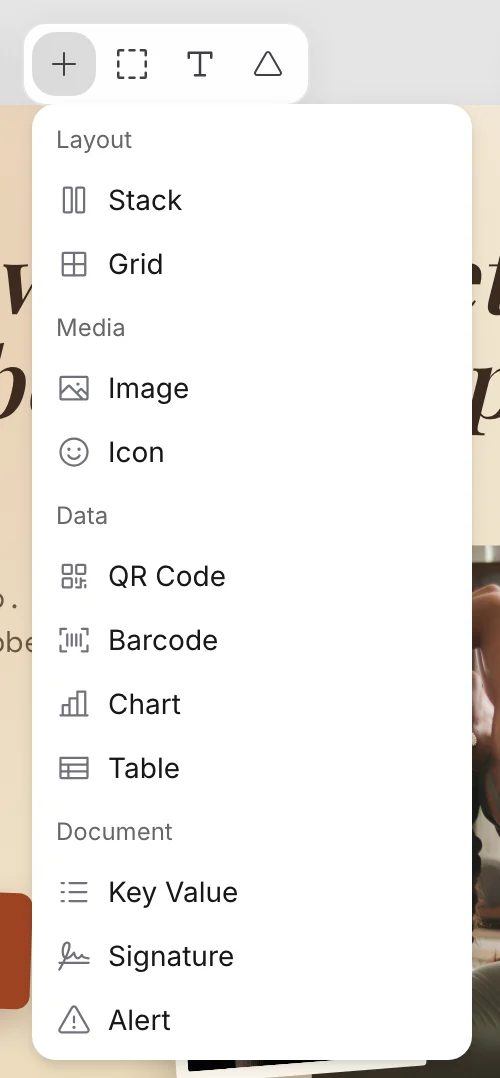 A new layer gets the name of its type, such as `Text`, and the second layer of a type gets a number, such as `Text 1`. Rename it before you call the API. [Name your layers](https://bannerify.co/docs/essentials/template-editor#name-your-layers) shows how.
| Item | Layer | What it draws |
| --- | --- | --- |
| Text | [Text](#text) | A line or a block of text |
| Image | [Image](#image) | A PNG, JPEG, WebP, or SVG picture |
| Frame | [Frame](#frame) | A box with a fill, a border, or a shadow |
| Stack | [Frame](#frame) | A frame that places its layers in a row or a column |
| Grid | [Frame](#frame) | A frame that places its layers in columns |
| Rectangle | [Frame](#frame) | A gray frame that is 200 by 200 pixels |
| Oval | [Frame](#frame) | A round gray frame that is 200 by 200 pixels |
| Line | [Path](#path) | A straight line from where you press to where you release |
| Path | [Path](#path) | Straight or curved lines through the points you click |
| QR Code | [QR code](#qr-code) | A QR code |
| Barcode | [Barcode](#barcode) | A Code 128 barcode |
| Icon | [Icon](#icon) | A vector icon |
| Star | [Star](#star) | A row of stars for a rating |
| Key Value | [Key value](#key-value) | Pairs of a label and a value |
| Signature | [Signature](#signature) | A signer name, a job title, and a date |
| Alert | [Alert](#alert) | A callout box with a title and a body |
| Link | [Link](#link) | A text that opens a URL when it is clicked in a PDF |
| Chart | [Chart](#chart) | A bar, line, area, pie, or donut chart |
| Table | [Table](#table) | A table of columns and rows |
Select a layer to open its settings in the **Design** panel. Every layer has **Position & Size**, and the other sections depend on the type.
## Text
Choose **Text**, click or drag on the canvas, and type. Double-click a text layer to edit it. The **Design** panel sets the font, weight, size, spacing, alignment, case, and color of the text.
A new layer gets the name of its type, such as `Text`, and the second layer of a type gets a number, such as `Text 1`. Rename it before you call the API. [Name your layers](https://bannerify.co/docs/essentials/template-editor#name-your-layers) shows how.
| Item | Layer | What it draws |
| --- | --- | --- |
| Text | [Text](#text) | A line or a block of text |
| Image | [Image](#image) | A PNG, JPEG, WebP, or SVG picture |
| Frame | [Frame](#frame) | A box with a fill, a border, or a shadow |
| Stack | [Frame](#frame) | A frame that places its layers in a row or a column |
| Grid | [Frame](#frame) | A frame that places its layers in columns |
| Rectangle | [Frame](#frame) | A gray frame that is 200 by 200 pixels |
| Oval | [Frame](#frame) | A round gray frame that is 200 by 200 pixels |
| Line | [Path](#path) | A straight line from where you press to where you release |
| Path | [Path](#path) | Straight or curved lines through the points you click |
| QR Code | [QR code](#qr-code) | A QR code |
| Barcode | [Barcode](#barcode) | A Code 128 barcode |
| Icon | [Icon](#icon) | A vector icon |
| Star | [Star](#star) | A row of stars for a rating |
| Key Value | [Key value](#key-value) | Pairs of a label and a value |
| Signature | [Signature](#signature) | A signer name, a job title, and a date |
| Alert | [Alert](#alert) | A callout box with a title and a body |
| Link | [Link](#link) | A text that opens a URL when it is clicked in a PDF |
| Chart | [Chart](#chart) | A bar, line, area, pie, or donut chart |
| Table | [Table](#table) | A table of columns and rows |
Select a layer to open its settings in the **Design** panel. Every layer has **Position & Size**, and the other sections depend on the type.
## Text
Choose **Text**, click or drag on the canvas, and type. Double-click a text layer to edit it. The **Design** panel sets the font, weight, size, spacing, alignment, case, and color of the text.
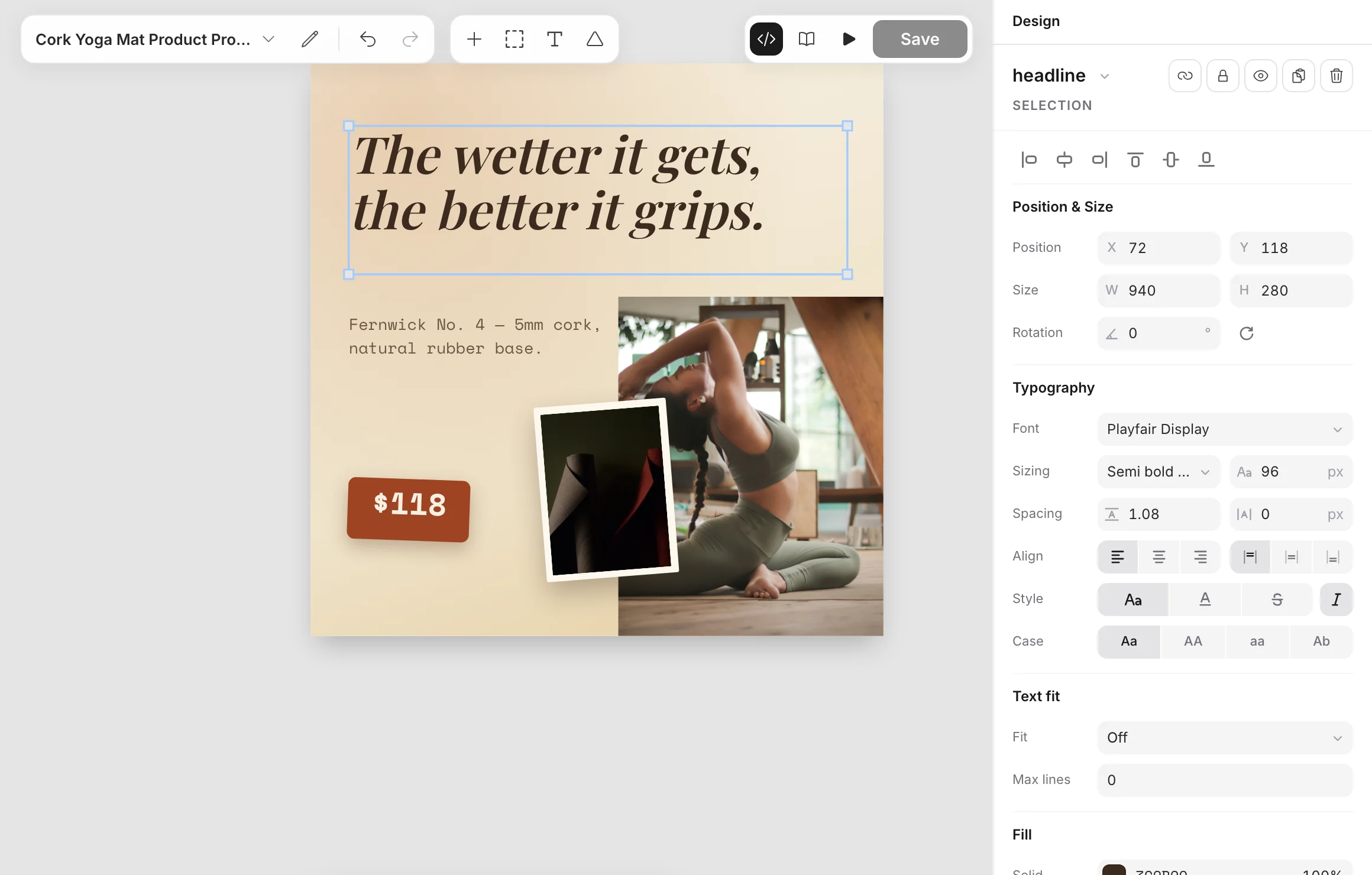 A request changes `text` and `color`. The new text replaces the whole text of the layer, and formatting inside the old text, such as one bold word, does not carry over.
```json
{ "name": "headline", "text": "Summer sale", "color": "#e11d48" }
```
The font list comes from Google Fonts, and the font picker has a search box. You cannot upload a font, and a font that Google Fonts does not serve renders in Arial.
Make the box of a text layer tall enough for the longest value you expect. A rendered image does not cut text at the bottom of the box, so a long value can run over the layers below it. The canvas of the editor hides that part, which is why you check long values in [Preview](https://bannerify.co/docs/essentials/template-editor#preview-your-changes), because Preview draws the text as the API does.
**Max lines** in the **Text fit** section shows at most that many lines. **Fit** in the same section scales text to its box and offers **Off**, **Grow to fill the box**, **Grow up to 150%**, **Shrink to fit**, and **Scale each line**. **Shrink to fit** lowers the font size until the whole text fits the box. **Scale each line** resizes each line on its own, so it has no effect on the last line or on a text of one line.
## Image
Select the layer and use **Image source** in the **Content** section. **Library** picks an uploaded or stock image, and **URL** takes an image address. **Fit** in the **Appearance** section offers **Cover**, **Contain**, and **Fill**.
A request changes `text` and `color`. The new text replaces the whole text of the layer, and formatting inside the old text, such as one bold word, does not carry over.
```json
{ "name": "headline", "text": "Summer sale", "color": "#e11d48" }
```
The font list comes from Google Fonts, and the font picker has a search box. You cannot upload a font, and a font that Google Fonts does not serve renders in Arial.
Make the box of a text layer tall enough for the longest value you expect. A rendered image does not cut text at the bottom of the box, so a long value can run over the layers below it. The canvas of the editor hides that part, which is why you check long values in [Preview](https://bannerify.co/docs/essentials/template-editor#preview-your-changes), because Preview draws the text as the API does.
**Max lines** in the **Text fit** section shows at most that many lines. **Fit** in the same section scales text to its box and offers **Off**, **Grow to fill the box**, **Grow up to 150%**, **Shrink to fit**, and **Scale each line**. **Shrink to fit** lowers the font size until the whole text fits the box. **Scale each line** resizes each line on its own, so it has no effect on the last line or on a text of one line.
## Image
Select the layer and use **Image source** in the **Content** section. **Library** picks an uploaded or stock image, and **URL** takes an image address. **Fit** in the **Appearance** section offers **Cover**, **Contain**, and **Fill**.
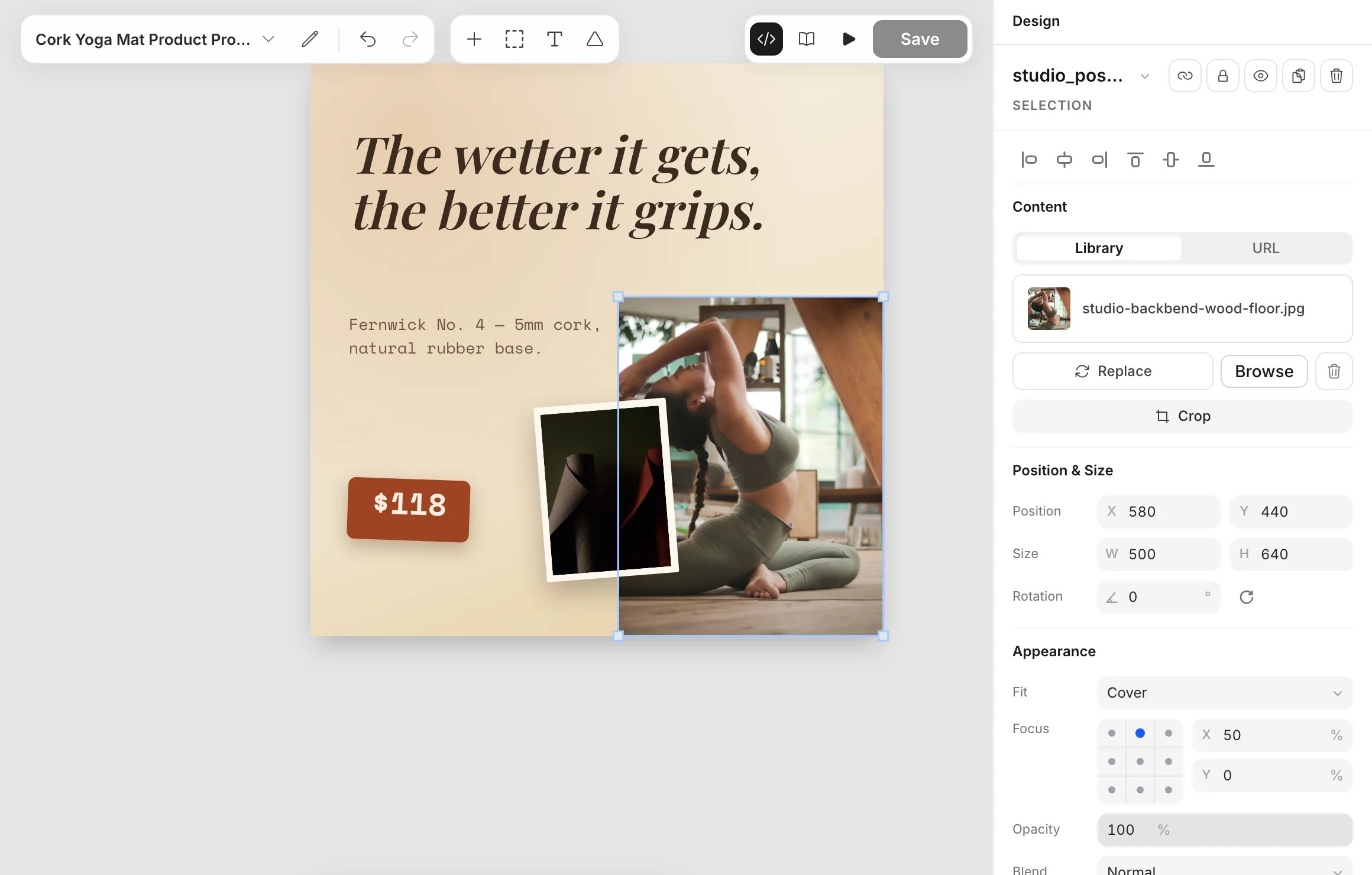 To crop an image, select it and click **Crop**, or double-click it.
A request changes `src`, which replaces the picture in the same box. The address must be a public URL of a PNG, JPEG, WebP, or SVG file. [Modifications](https://bannerify.co/docs/essentials/modifications#images) explains how Bannerify downloads it.
## Frame
A frame is a box. Choose **Frame** and drag on the canvas to draw one. Set its color in the **Fill** section. The **Stroke** and **Shadow** sections add a border and a shadow, and **Radius** in **Appearance** rounds the corners. Use a frame as a background or a card behind other layers.
To crop an image, select it and click **Crop**, or double-click it.
A request changes `src`, which replaces the picture in the same box. The address must be a public URL of a PNG, JPEG, WebP, or SVG file. [Modifications](https://bannerify.co/docs/essentials/modifications#images) explains how Bannerify downloads it.
## Frame
A frame is a box. Choose **Frame** and drag on the canvas to draw one. Set its color in the **Fill** section. The **Stroke** and **Shadow** sections add a border and a shadow, and **Radius** in **Appearance** rounds the corners. Use a frame as a background or a card behind other layers.
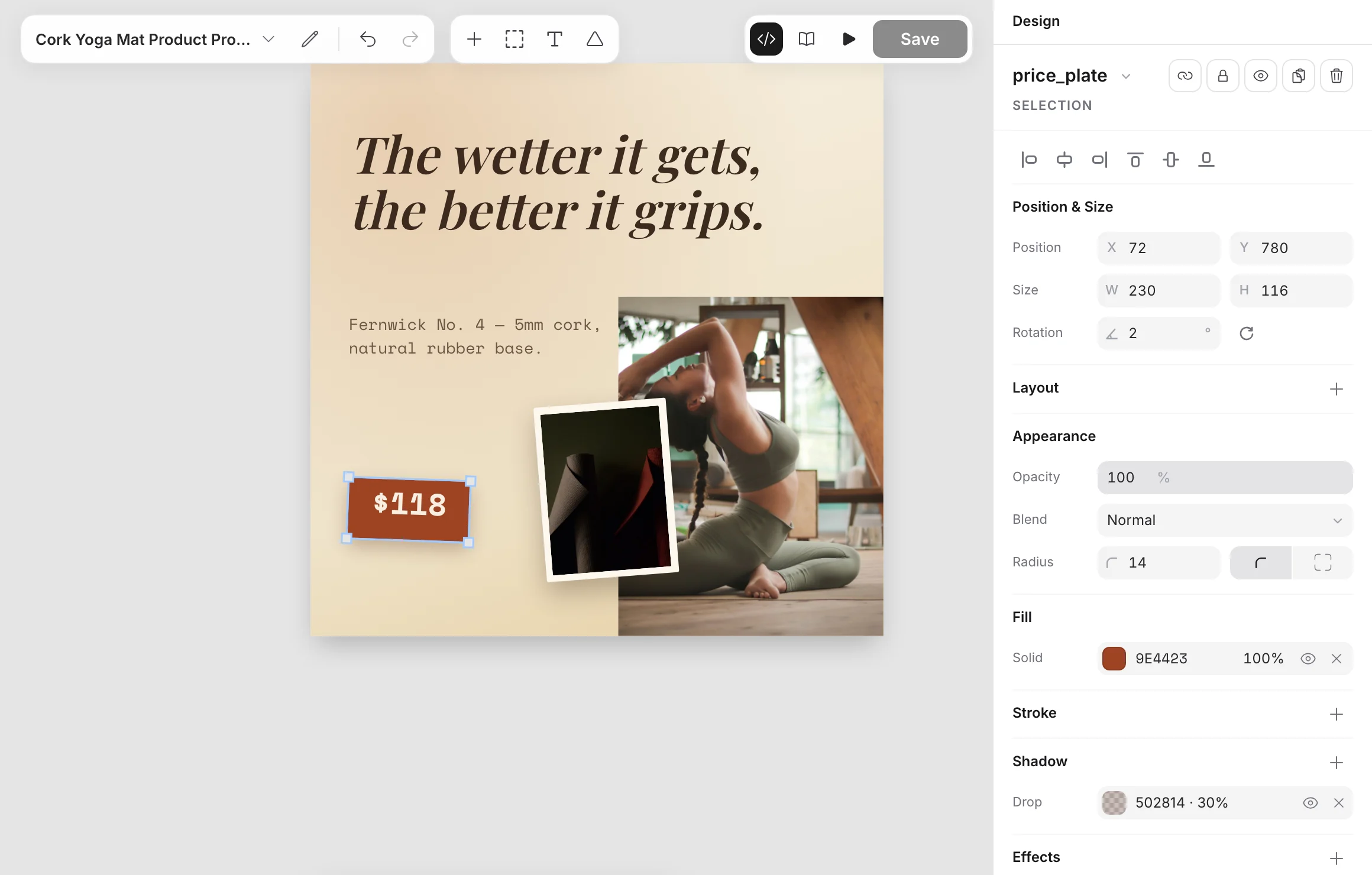 A frame holds other layers. A rectangle and an oval are frames too. Draw a layer inside a frame, or drag a layer onto a frame, to put it inside: the layer then moves with the frame, and the frame hides the part of it that is outside its box. Drag the layer out of the frame to take it out. The **Layers** panel shows the layers of a frame under it.
### Stack and grid
A frame with a layout places its layers for you, in the order of the **Layers** panel. Choose **Stack** or **Grid** in **Insert**, or click **+** in the **Layout** section of any frame. A new stack starts with two frames, and a new grid with four.
When a frame is selected, a layer that you add from **Insert** or **Shapes** goes inside it. A layer that is too large for the frame gets smaller to fit.
- **Stack** puts the layers in a row or a column. **Direction** sets which, **Distribute** spreads them along it, **Align** lines them up across it, and **Wrap** moves the layers that do not fit to a new line.
- **Grid** puts the layers in equal **Columns**, row by row, and makes each layer as wide as its column. The **Rows** share the frame's height, and a row grows when a layer in it is taller. Layers past the last row add rows, which share the height too.
- **Gap** sets the space between the layers (a grid has one gap between columns and one between rows), and **Padding** the space inside the frame's edges.
Drag a layer in a stack or a grid to move it to another place in the order. Click **−** in the **Layout** section to remove the layout: the layers stay where they are.
A request can change only `visible`.
## QR code
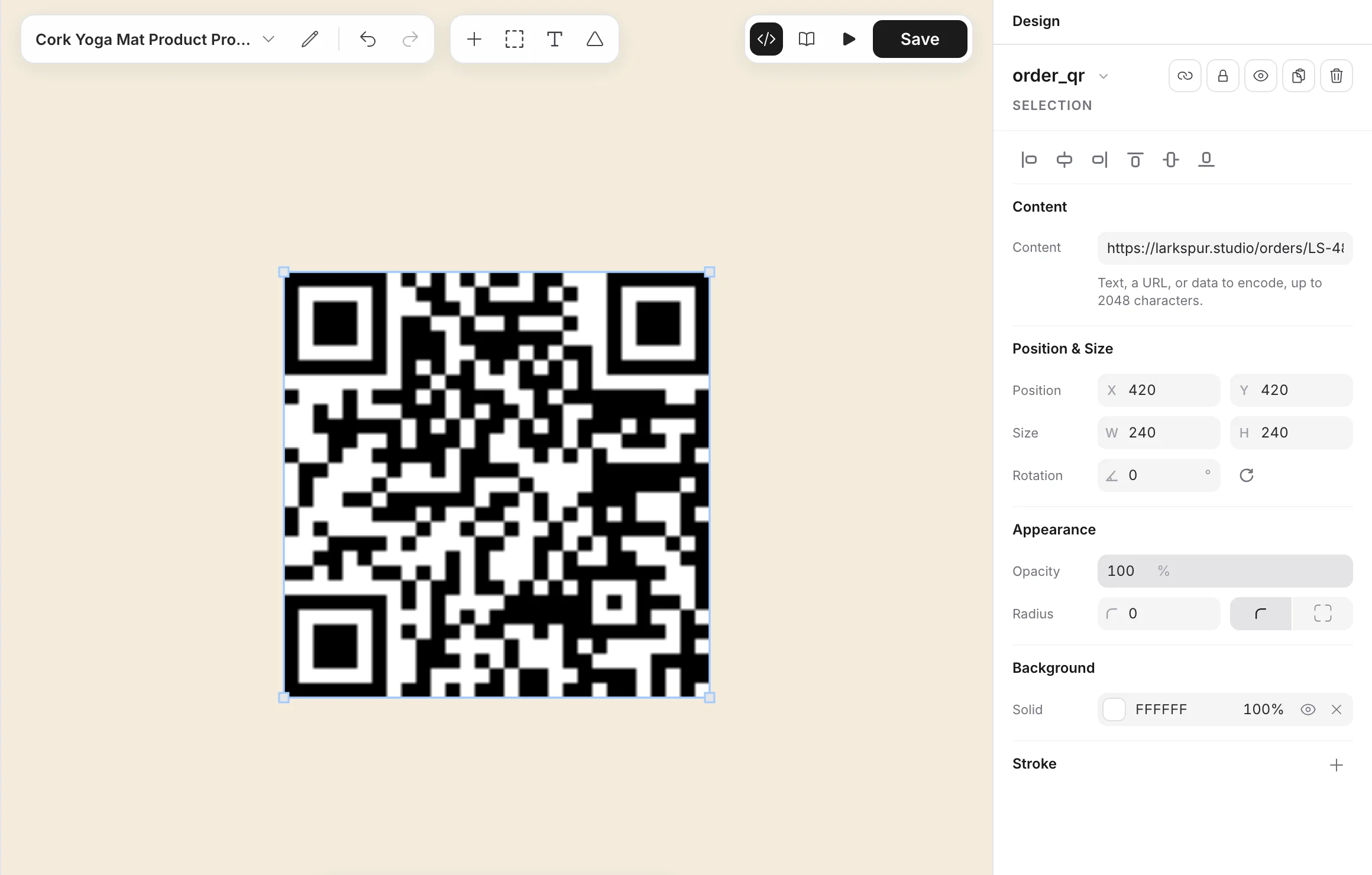
Choose **QR Code** from **Insert** and enter text or a URL in **Content**. A request changes `qrcode`, which replaces that content.
A frame holds other layers. A rectangle and an oval are frames too. Draw a layer inside a frame, or drag a layer onto a frame, to put it inside: the layer then moves with the frame, and the frame hides the part of it that is outside its box. Drag the layer out of the frame to take it out. The **Layers** panel shows the layers of a frame under it.
### Stack and grid
A frame with a layout places its layers for you, in the order of the **Layers** panel. Choose **Stack** or **Grid** in **Insert**, or click **+** in the **Layout** section of any frame. A new stack starts with two frames, and a new grid with four.
When a frame is selected, a layer that you add from **Insert** or **Shapes** goes inside it. A layer that is too large for the frame gets smaller to fit.
- **Stack** puts the layers in a row or a column. **Direction** sets which, **Distribute** spreads them along it, **Align** lines them up across it, and **Wrap** moves the layers that do not fit to a new line.
- **Grid** puts the layers in equal **Columns**, row by row, and makes each layer as wide as its column. The **Rows** share the frame's height, and a row grows when a layer in it is taller. Layers past the last row add rows, which share the height too.
- **Gap** sets the space between the layers (a grid has one gap between columns and one between rows), and **Padding** the space inside the frame's edges.
Drag a layer in a stack or a grid to move it to another place in the order. Click **−** in the **Layout** section to remove the layout: the layers stay where they are.
A request can change only `visible`.
## QR code
Choose **QR Code** from **Insert** and enter text or a URL in **Content**. A request changes `qrcode`, which replaces that content.
 ## Barcode
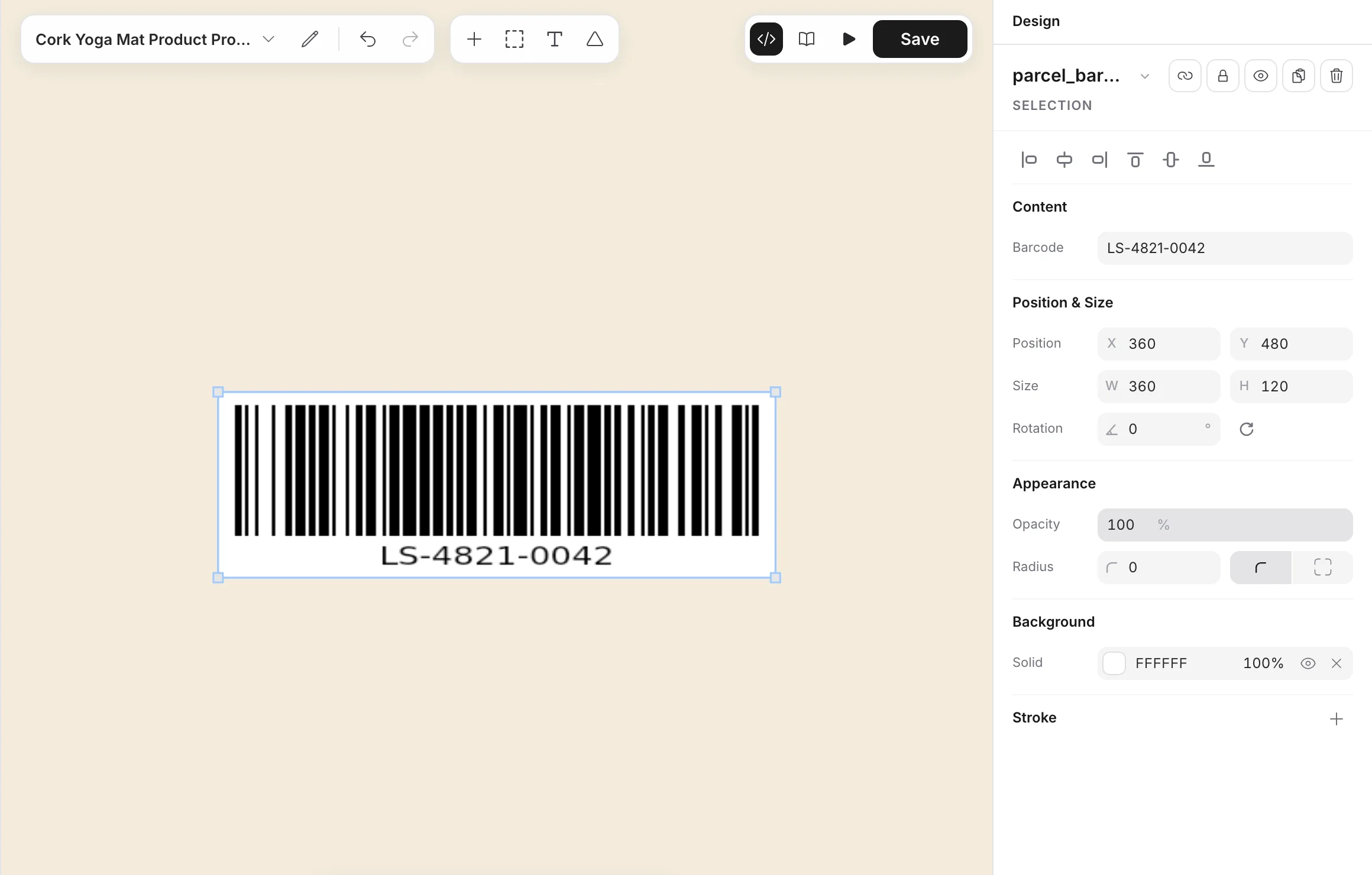
Choose **Barcode** from **Insert** and enter the value in **Content**. Bannerify draws a Code 128 barcode and prints its value under the bars. A request changes `barcode`.
## Barcode
Choose **Barcode** from **Insert** and enter the value in **Content**. Bannerify draws a Code 128 barcode and prints its value under the bars. A request changes `barcode`.
 ## Icon
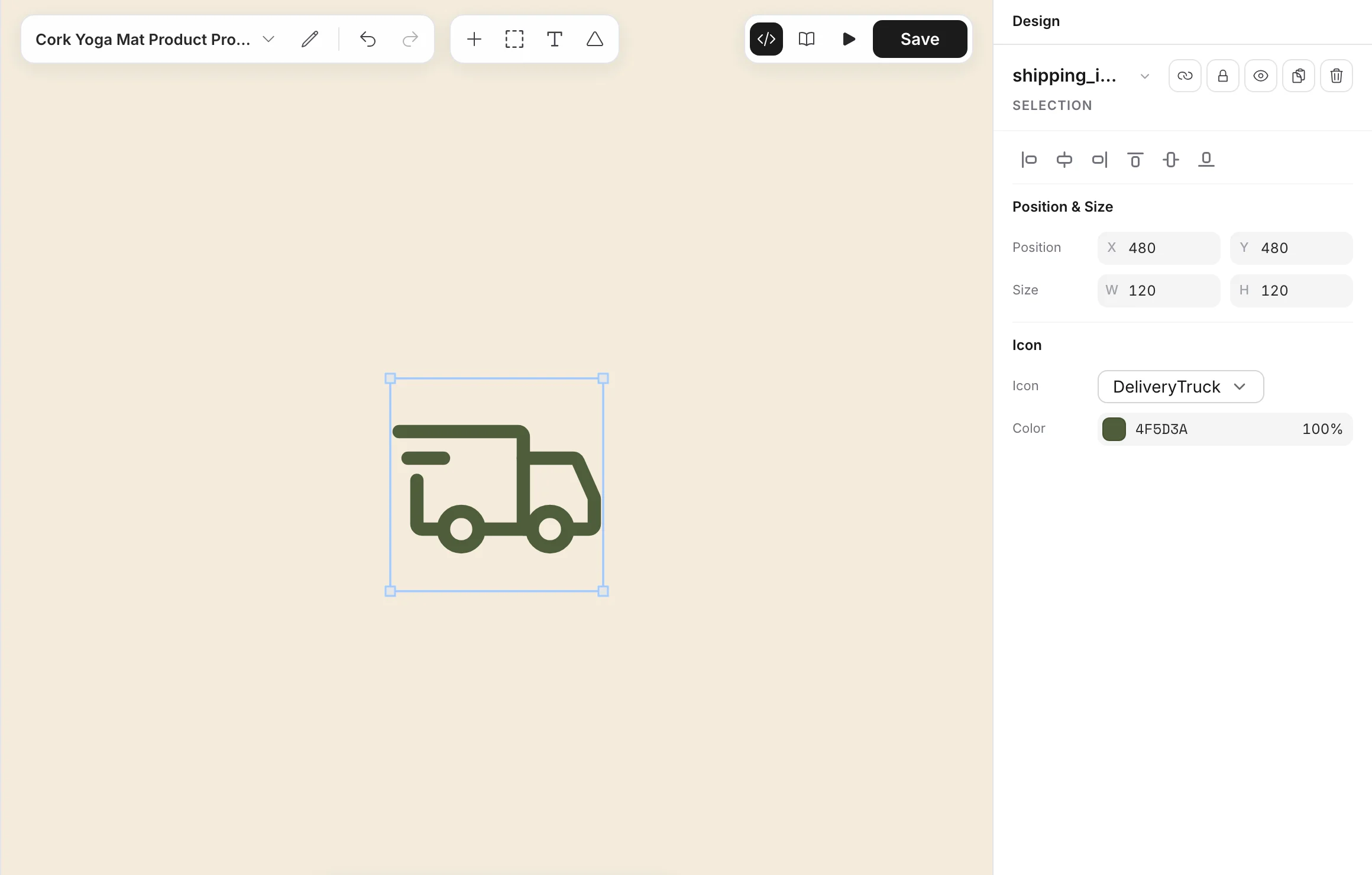
Choose **Icon**, pick a set in **Set**, and pick a name in **Icon**. When you change the set, the layer keeps the same icon if the new set has it.
The layer stores the icon as `set:name`, for example `lucide:house` or `ph-fill:star`. A name without a set, such as `CheckCircle`, is an Iconoir icon. Each set is free for commercial use.
| Set | ID | License |
| --- | --- | --- |
| [Iconoir](https://iconoir.com) | `iconoir` | MIT |
| [Lucide](https://lucide.dev) | `lucide` | ISC |
| [Phosphor](https://phosphoricons.com) | `ph`, `ph-fill` | MIT |
| [Heroicons](https://heroicons.com) | `heroicons`, `heroicons-solid` | MIT |
| [Feather](https://feathericons.com) | `feather` | MIT |
| [Tabler](https://tabler.io/icons) | `tabler` | MIT |
| [Material Symbols](https://fonts.google.com/icons) | `material-symbols` | Apache 2.0 |
| [Bootstrap Icons](https://icons.getbootstrap.com) | `bi` | MIT |
| [Mage](https://mageicons.com) | `mage` | Apache 2.0 |
| [Basil](https://basicons.xyz) by Craftwork | `basil` | CC BY 4.0 |
| [Flowbite](https://flowbite.com/icons) | `flowbite` | MIT |
| [Meteor](https://meteoricons.com) | `meteor-icons` | MIT |
A request can change only `visible`.
## Icon
Choose **Icon**, pick a set in **Set**, and pick a name in **Icon**. When you change the set, the layer keeps the same icon if the new set has it.
The layer stores the icon as `set:name`, for example `lucide:house` or `ph-fill:star`. A name without a set, such as `CheckCircle`, is an Iconoir icon. Each set is free for commercial use.
| Set | ID | License |
| --- | --- | --- |
| [Iconoir](https://iconoir.com) | `iconoir` | MIT |
| [Lucide](https://lucide.dev) | `lucide` | ISC |
| [Phosphor](https://phosphoricons.com) | `ph`, `ph-fill` | MIT |
| [Heroicons](https://heroicons.com) | `heroicons`, `heroicons-solid` | MIT |
| [Feather](https://feathericons.com) | `feather` | MIT |
| [Tabler](https://tabler.io/icons) | `tabler` | MIT |
| [Material Symbols](https://fonts.google.com/icons) | `material-symbols` | Apache 2.0 |
| [Bootstrap Icons](https://icons.getbootstrap.com) | `bi` | MIT |
| [Mage](https://mageicons.com) | `mage` | Apache 2.0 |
| [Basil](https://basicons.xyz) by Craftwork | `basil` | CC BY 4.0 |
| [Flowbite](https://flowbite.com/icons) | `flowbite` | MIT |
| [Meteor](https://meteoricons.com) | `meteor-icons` | MIT |
A request can change only `visible`.
 ## Path
With **Path**, click to add each point. Click the first point to close the path, or double-click or press **Enter** or **Escape** to end it. Hold **Shift** to keep a segment at a multiple of 45°. **Line** draws a path of two points: drag from the start to the end.
Select a path to move its points, or drag the dot between two points to add one. **Points** makes the segments **Straight** or **Curved**, **Ends** closes the path, and **Stroke** and **Fill** set its colors and the width of its line.
## Star
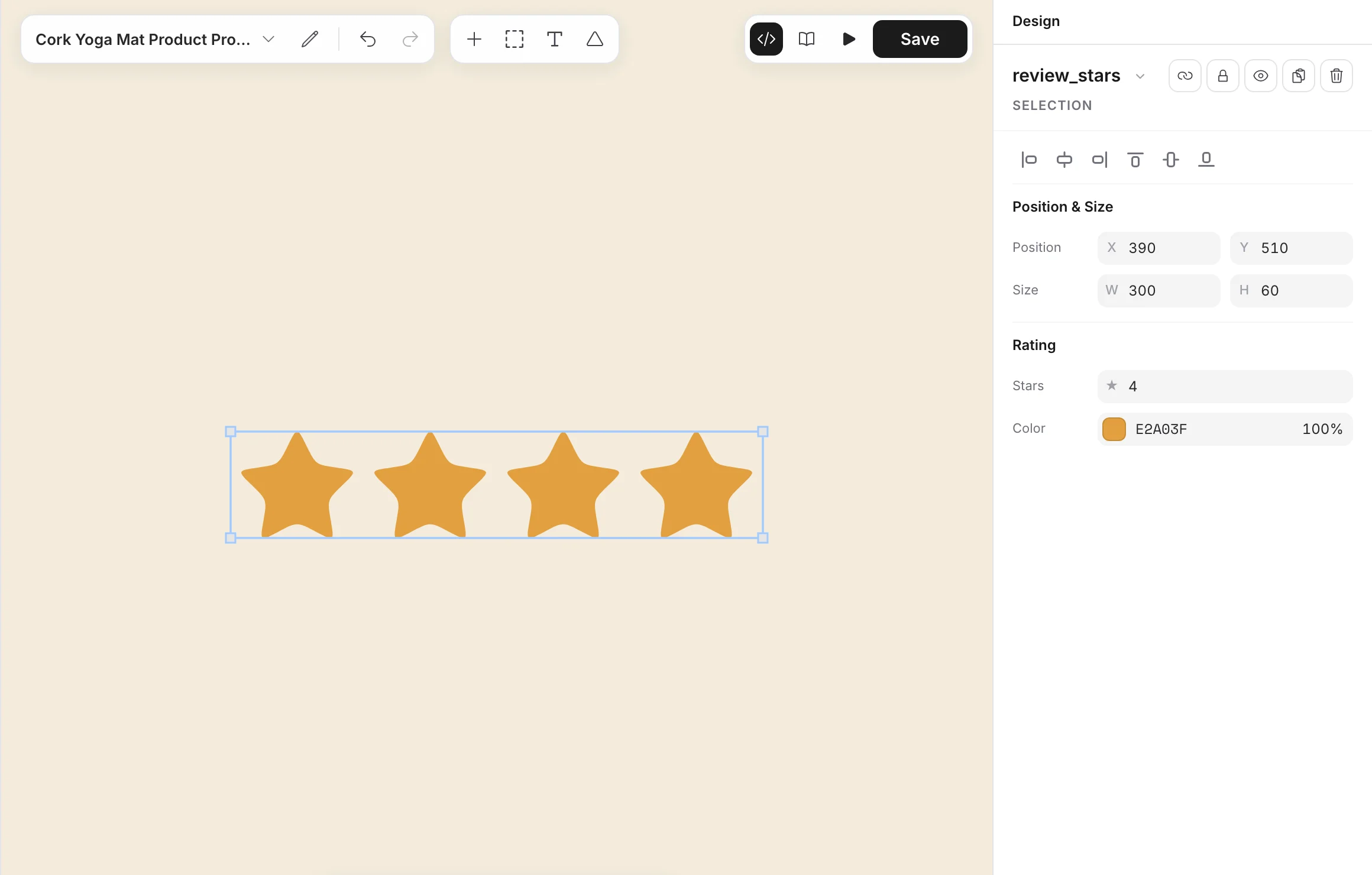
Choose **Star** and set the number of stars in the **Rating** section. A request changes `star`, and the layer draws one star for each whole number. A value of `0` is ignored.
## Path
With **Path**, click to add each point. Click the first point to close the path, or double-click or press **Enter** or **Escape** to end it. Hold **Shift** to keep a segment at a multiple of 45°. **Line** draws a path of two points: drag from the start to the end.
Select a path to move its points, or drag the dot between two points to add one. **Points** makes the segments **Straight** or **Curved**, **Ends** closes the path, and **Stroke** and **Fill** set its colors and the width of its line.
## Star
Choose **Star** and set the number of stars in the **Rating** section. A request changes `star`, and the layer draws one star for each whole number. A value of `0` is ignored.
 ## Key value
Choose **Key Value** to print pairs of a label and a value, such as an invoice number and a due date. Edit the pairs in **Data**, and use **Layout** for the direction, the size, the label width, and the dividers.
## Key value
Choose **Key Value** to print pairs of a label and a value, such as an invoice number and a due date. Edit the pairs in **Data**, and use **Layout** for the direction, the size, the label width, and the dividers.
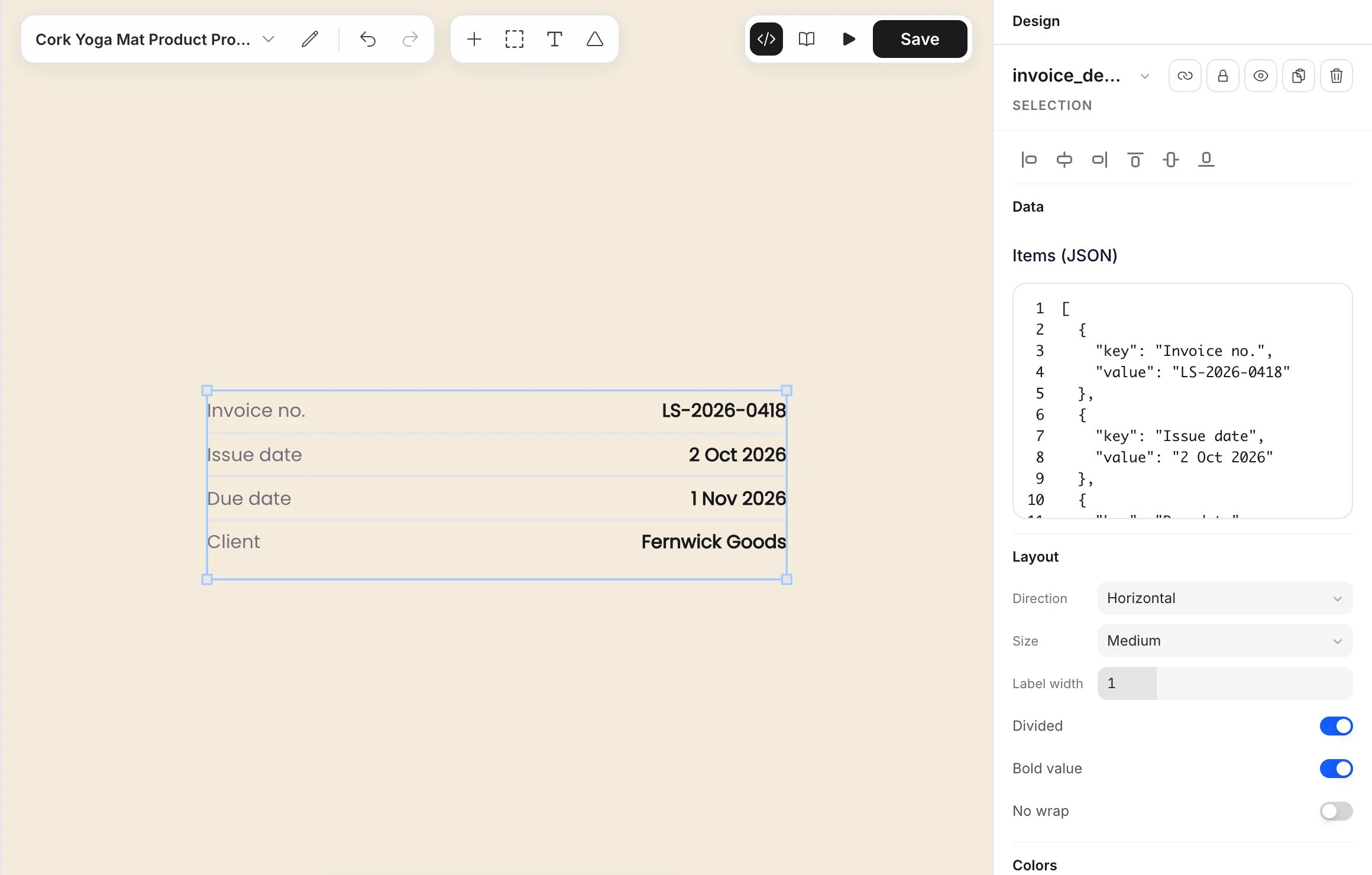 A request changes `rows`, with one entry for each line in the order they appear. See [Key value](https://bannerify.co/docs/essentials/modifications#key-value) for the format.
## Signature
Choose **Signature** to print a signer block. In the **Signer** section, set the **Layout** (**Single**, **Double**, or **Inline**), the **Label**, the **Name**, the **Title**, and the **Date**.
A request changes `rows`, with one entry for each line in the order they appear. See [Key value](https://bannerify.co/docs/essentials/modifications#key-value) for the format.
## Signature
Choose **Signature** to print a signer block. In the **Signer** section, set the **Layout** (**Single**, **Double**, or **Inline**), the **Label**, the **Name**, the **Title**, and the **Date**.
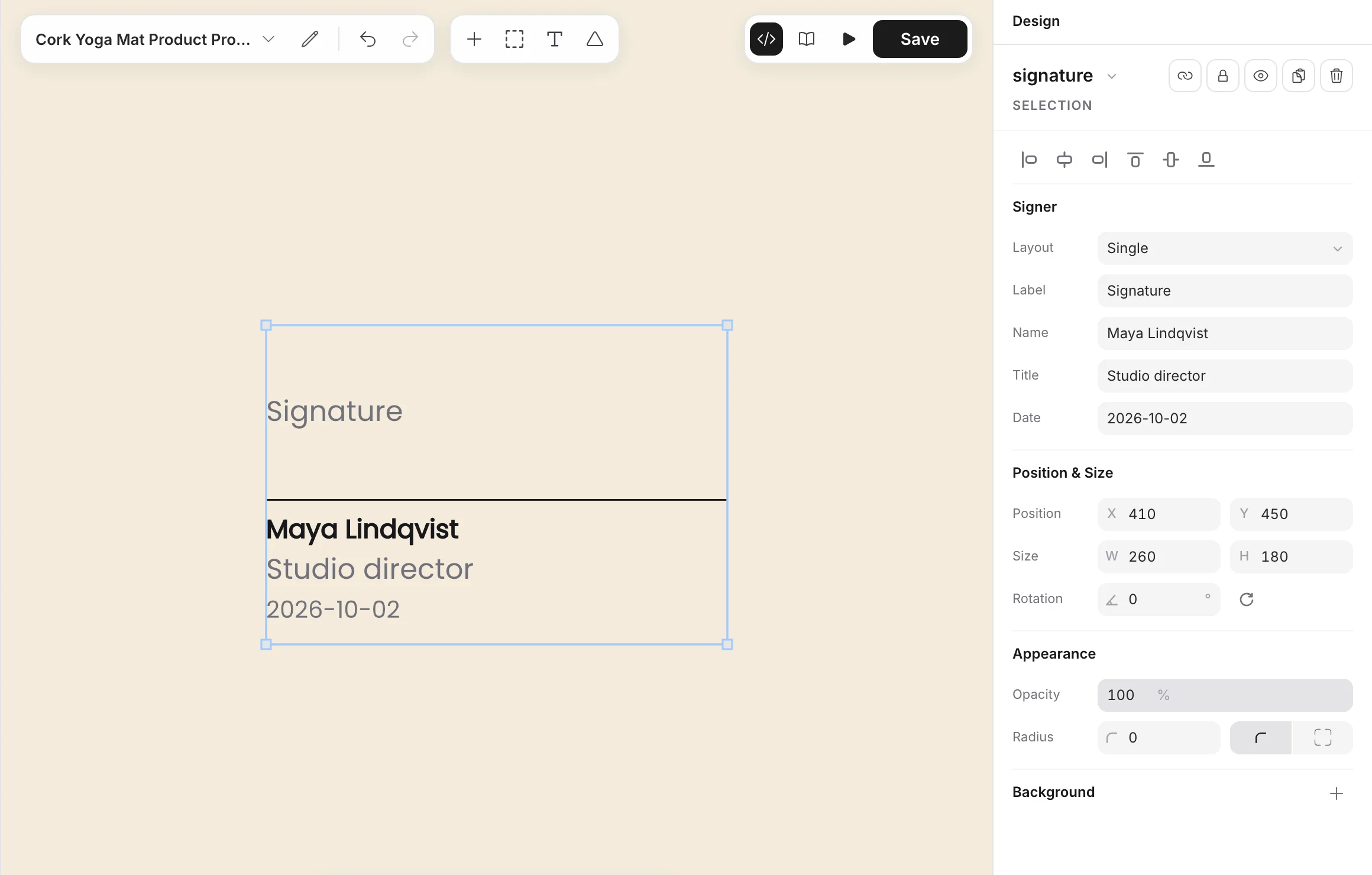 A request changes the **Name** with `text`, the **Title** with `title`, and the **Date** with `date`. The name uses `text` because `name` already identifies the layer.
```json
{ "name": "signature", "text": "An Nguyen", "title": "Director", "date": "2026-02-02" }
```
## Alert
Choose **Alert** to print a callout, such as a payment deadline or a shipping notice. In **Content**, set the **Variant** (**Info**, **Success**, **Warning**, or **Error**), the **Title**, and the **Description**. You can also show or hide the icon and the border.
A request changes the **Name** with `text`, the **Title** with `title`, and the **Date** with `date`. The name uses `text` because `name` already identifies the layer.
```json
{ "name": "signature", "text": "An Nguyen", "title": "Director", "date": "2026-02-02" }
```
## Alert
Choose **Alert** to print a callout, such as a payment deadline or a shipping notice. In **Content**, set the **Variant** (**Info**, **Success**, **Warning**, or **Error**), the **Title**, and the **Description**. You can also show or hide the icon and the border.
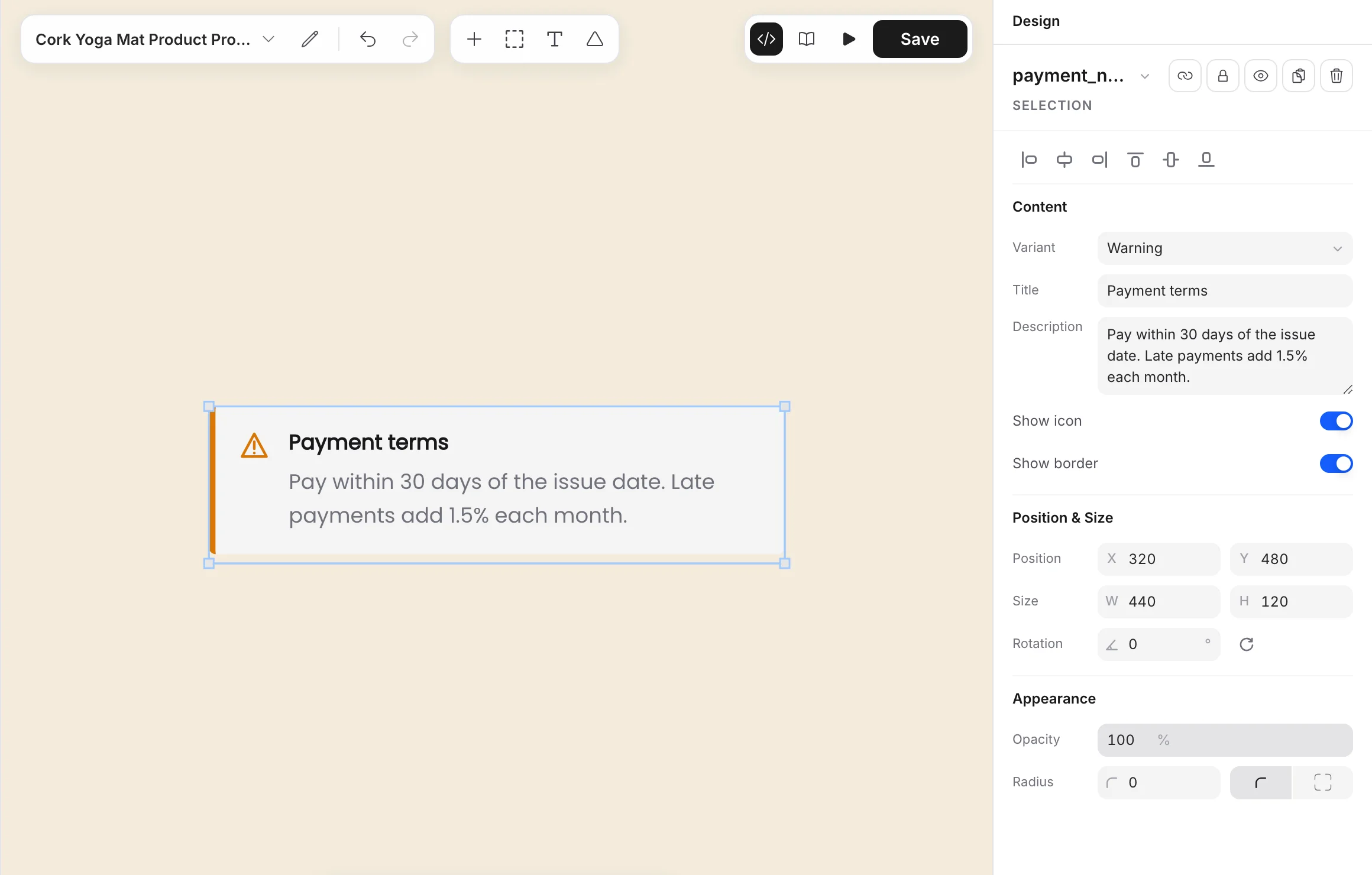 A request changes the heading with `title` and fills the **Description** with `text`.
```json
{ "name": "notice", "title": "Payment terms", "text": "Pay before 31 Jan 2026." }
```
## Link
Choose **Link** from **Insert** to add a text that opens a web page, an email, or a phone number. Set the address in **URL** of the **PDF link** section. It takes an `https://`, `http://`, `mailto:`, or `tel:` URL. The rest of the **Design** panel is the same as for a text layer.
The link works only in a PDF: click the text in the PDF to open the URL. A PNG, JPEG, or WebP image draws the same text without the link.
A request changes the text with `text`, its color with `color`, and the URL with `href`.
```json
{ "name": "pay", "text": "Pay invoice INV-1048", "href": "https://example.com/pay/INV-1048" }
```
## Chart
Choose **Chart** from **Insert**, then edit the points in **Data**. In the **Chart** section, choose the **Variant** (**Bar**, **Horizontal bar**, **Line**, **Area**, **Pie**, or **Donut**) and the **Legend**, and set the titles and the axis labels. **Series colors** sets the colors of the series.
A request changes the heading with `title` and fills the **Description** with `text`.
```json
{ "name": "notice", "title": "Payment terms", "text": "Pay before 31 Jan 2026." }
```
## Link
Choose **Link** from **Insert** to add a text that opens a web page, an email, or a phone number. Set the address in **URL** of the **PDF link** section. It takes an `https://`, `http://`, `mailto:`, or `tel:` URL. The rest of the **Design** panel is the same as for a text layer.
The link works only in a PDF: click the text in the PDF to open the URL. A PNG, JPEG, or WebP image draws the same text without the link.
A request changes the text with `text`, its color with `color`, and the URL with `href`.
```json
{ "name": "pay", "text": "Pay invoice INV-1048", "href": "https://example.com/pay/INV-1048" }
```
## Chart
Choose **Chart** from **Insert**, then edit the points in **Data**. In the **Chart** section, choose the **Variant** (**Bar**, **Horizontal bar**, **Line**, **Area**, **Pie**, or **Donut**) and the **Legend**, and set the titles and the axis labels. **Series colors** sets the colors of the series.
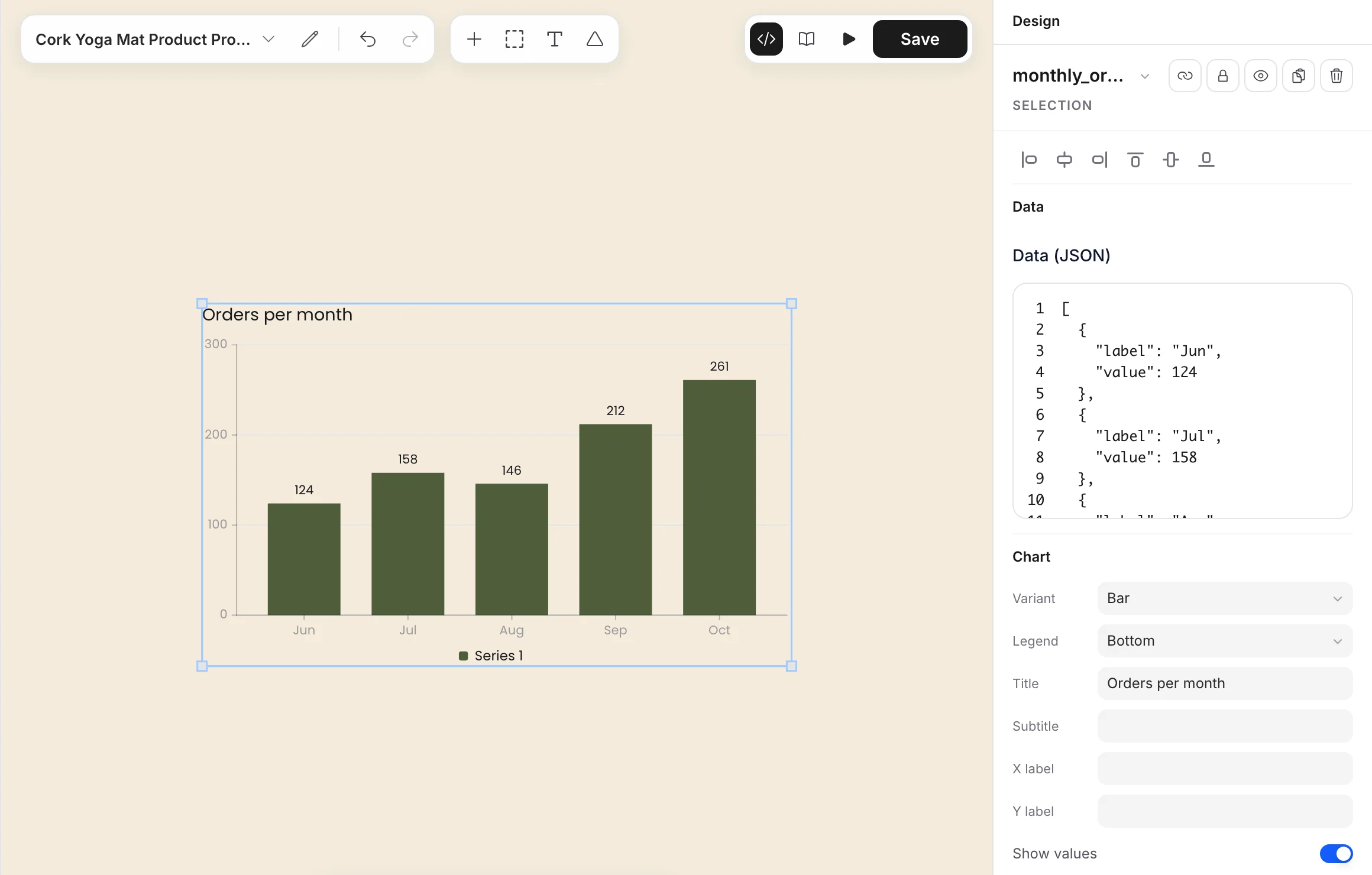 A request changes `rows`. Send points for one series, or series for several. See [Charts](https://bannerify.co/docs/essentials/modifications#charts) for both formats.
## Table
Choose **Table** from **Insert**, then edit the default columns and rows in **Data**. In the **Table** section, choose the **Variant** (**Line**, **Grid**, **Minimal**, **Striped**, **Compact**, **Bordered**, or **Primary header**) and the **Row size** (**Default** or **Compact**). **Stripe rows** and **No wrap** are switches.
A request changes `rows`. Send points for one series, or series for several. See [Charts](https://bannerify.co/docs/essentials/modifications#charts) for both formats.
## Table
Choose **Table** from **Insert**, then edit the default columns and rows in **Data**. In the **Table** section, choose the **Variant** (**Line**, **Grid**, **Minimal**, **Striped**, **Compact**, **Bordered**, or **Primary header**) and the **Row size** (**Default** or **Compact**). **Stripe rows** and **No wrap** are switches.
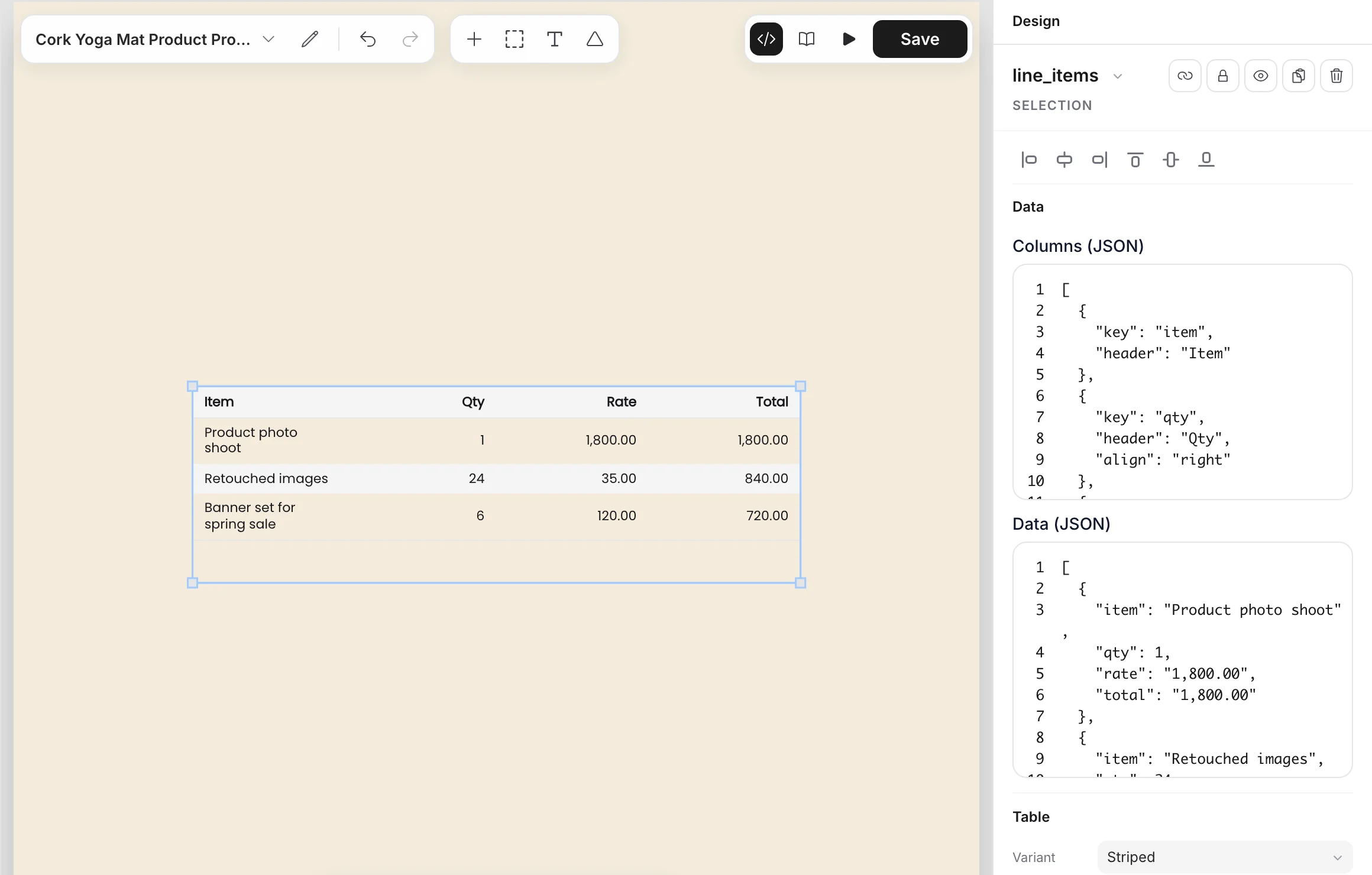 A request changes `columns` and `rows`. See [Tables](https://bannerify.co/docs/essentials/modifications#tables) for the format.
## Show or hide a layer
`visible` works on every layer type. Click the eye of a layer in the **Layers** list to hide it. A hidden layer stays out of rendered files until a request sets `"visible": true`, and a request that sets `"visible": false` hides a layer that is showing.
```json
{ "name": "sale-badge", "visible": true }
```
A field that a request leaves out keeps the value from the template.
## Related
- [Previous: Design a template](https://bannerify.co/docs/essentials/template-editor)
- [Next: Modifications](https://bannerify.co/docs/essentials/modifications)
- [Documentation index](https://bannerify.co/docs/llms.txt)
A request changes `columns` and `rows`. See [Tables](https://bannerify.co/docs/essentials/modifications#tables) for the format.
## Show or hide a layer
`visible` works on every layer type. Click the eye of a layer in the **Layers** list to hide it. A hidden layer stays out of rendered files until a request sets `"visible": true`, and a request that sets `"visible": false` hides a layer that is showing.
```json
{ "name": "sale-badge", "visible": true }
```
A field that a request leaves out keeps the value from the template.
## Related
- [Previous: Design a template](https://bannerify.co/docs/essentials/template-editor)
- [Next: Modifications](https://bannerify.co/docs/essentials/modifications)
- [Documentation index](https://bannerify.co/docs/llms.txt)