# Design a template
> Learn how to design a template in the Bannerify editor, preview it, and save it for API requests.
Canonical: https://bannerify.co/docs/essentials/template-editor
A template is a design with named layers. You build it once in the editor. After that, each request sends the template id and new values, and Bannerify returns an image or a PDF with those values in place.
## How it fits together
1. Design the canvas and add the layers. [Layer types](https://bannerify.co/docs/essentials/elements) lists what you can add.
2. Name every layer that a request changes. [Modifications](https://bannerify.co/docs/essentials/modifications) explains how a request uses the names.
3. Save the template, then send its id and your values to the API. [Generate images](https://bannerify.co/docs/essentials/generate-images) and [Generate PDFs](https://bannerify.co/docs/essentials/generate-pdfs) show the requests.
## Create a template
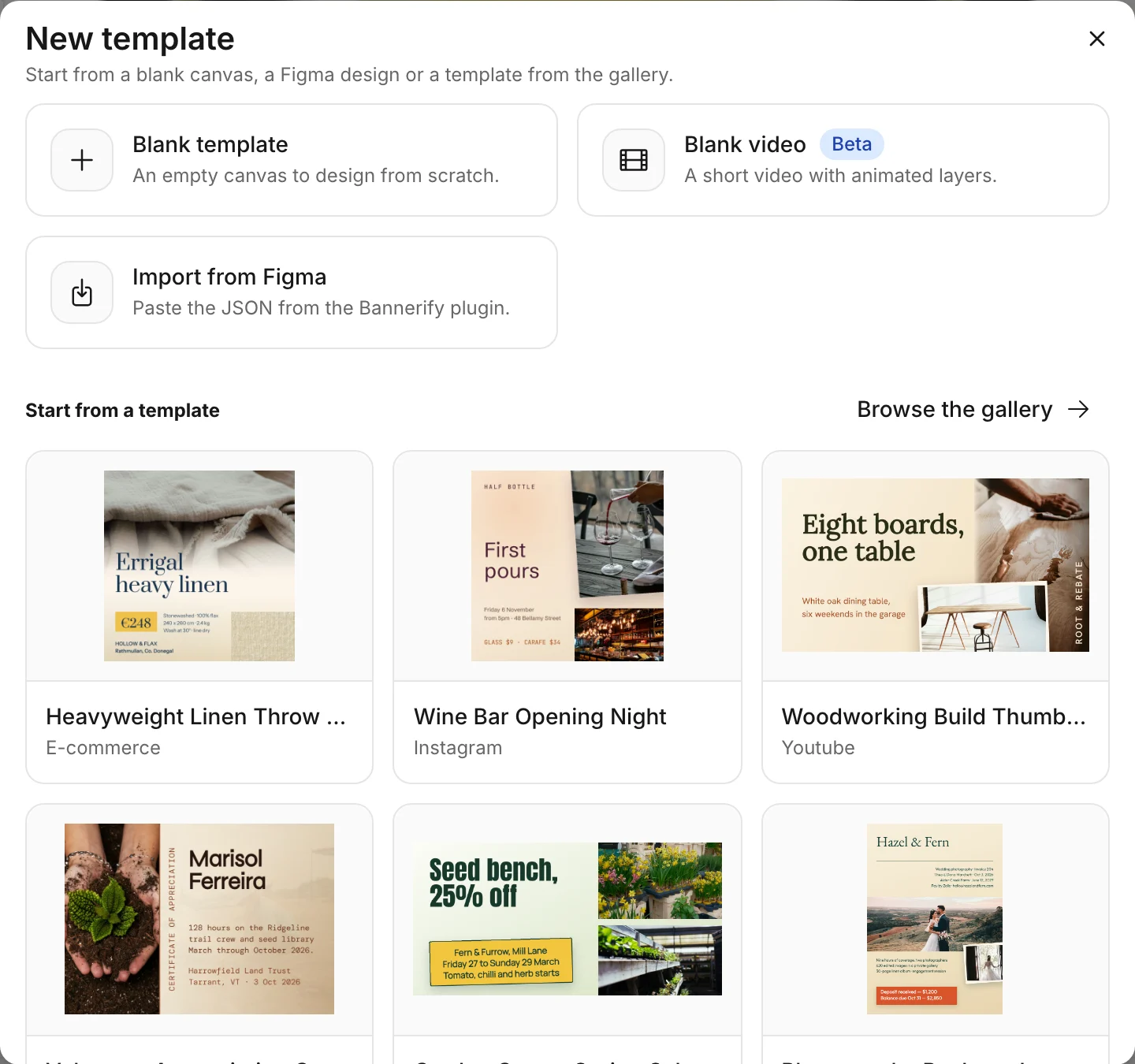
1. Open the **Templates** page in the dashboard and click **New template**.
2. Choose **Blank template** for an empty canvas, or click a card under **Start from a template** to copy a gallery template into your project. **Browse the gallery** shows the rest.
 The editor opens with your new template.
## Find your way around
The editor opens with your new template.
## Find your way around
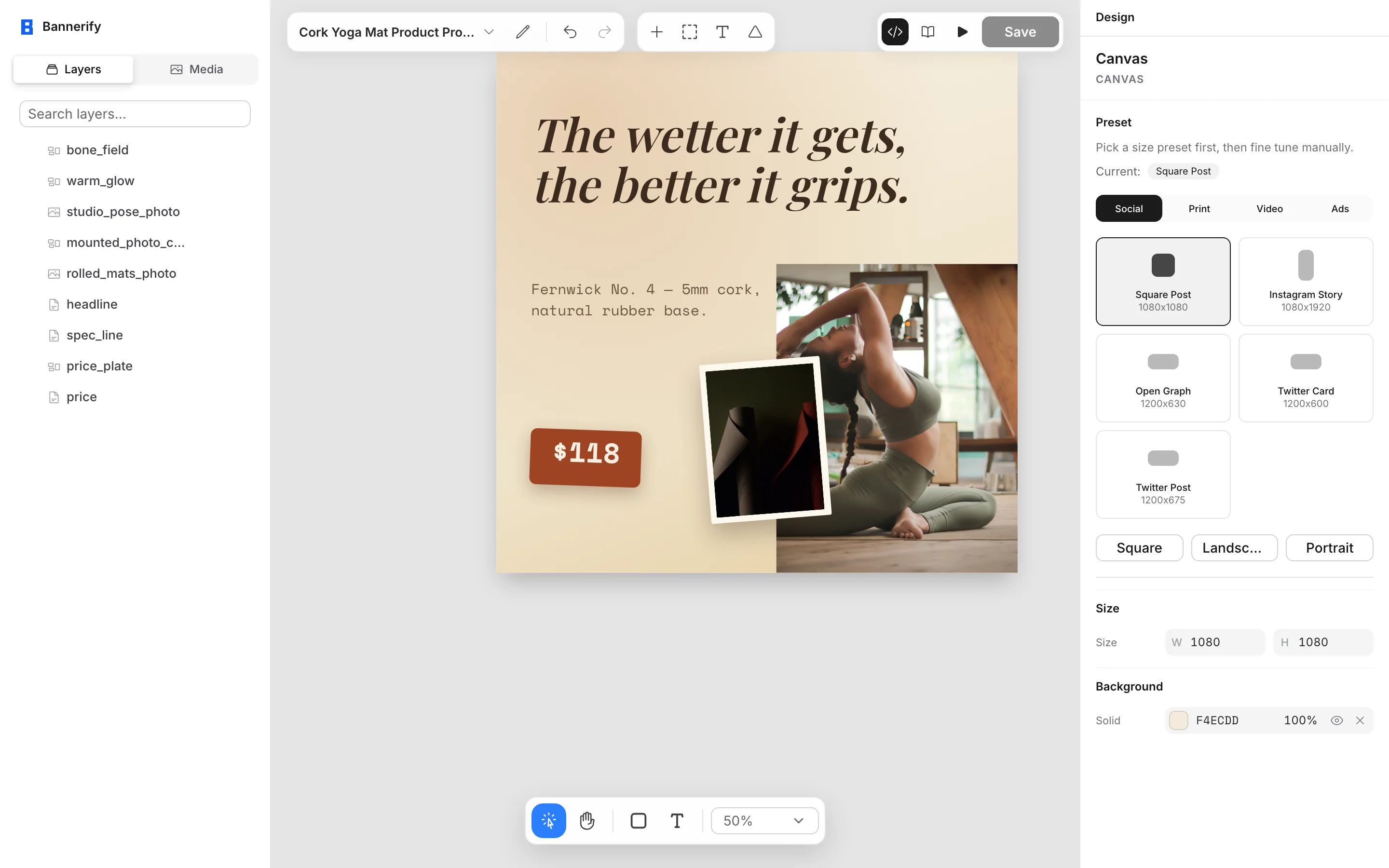 | Area | What it holds |
| --- | --- |
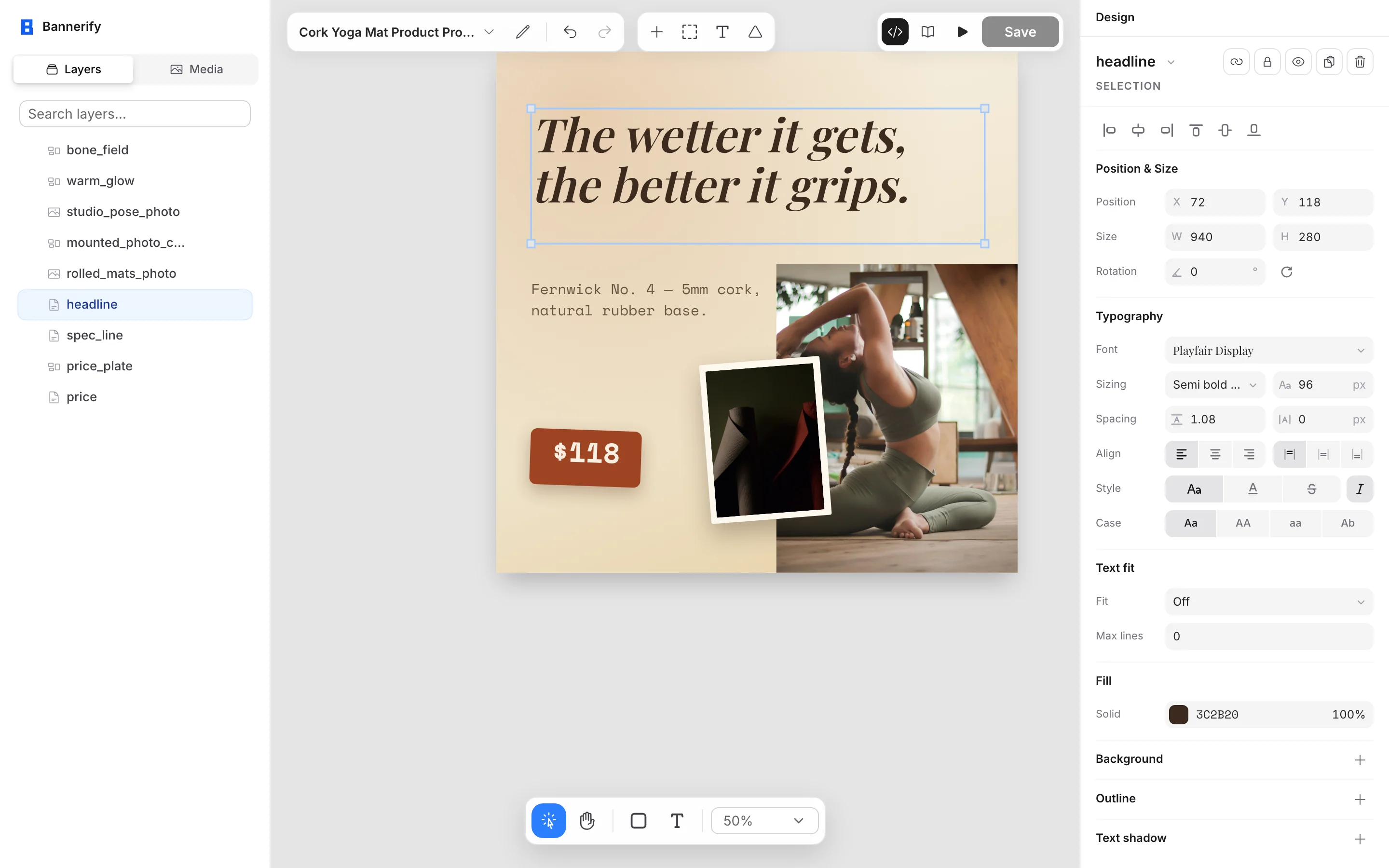
| Top left | The template name opens a list of your templates. The pencil (**Rename template**) renames this one, and **Undo** and **Redo** step through your changes |
| Top center | **Insert**, **Frame**, **Text**, and **Shapes** add layers |
| Top right | **Documentation** opens these docs, **Preview** renders the canvas, and **Save** stores your changes |
| Left panel | The **Layers** tab lists every layer, and the **Media** tab holds your images |
| Right panel | The **Design** tab shows the settings of the selected layer. With no layer selected, it shows the canvas settings. |
## Set the canvas size and background
Click an empty area of the canvas to open the canvas settings.
| Area | What it holds |
| --- | --- |
| Top left | The template name opens a list of your templates. The pencil (**Rename template**) renames this one, and **Undo** and **Redo** step through your changes |
| Top center | **Insert**, **Frame**, **Text**, and **Shapes** add layers |
| Top right | **Documentation** opens these docs, **Preview** renders the canvas, and **Save** stores your changes |
| Left panel | The **Layers** tab lists every layer, and the **Media** tab holds your images |
| Right panel | The **Design** tab shows the settings of the selected layer. With no layer selected, it shows the canvas settings. |
## Set the canvas size and background
Click an empty area of the canvas to open the canvas settings.
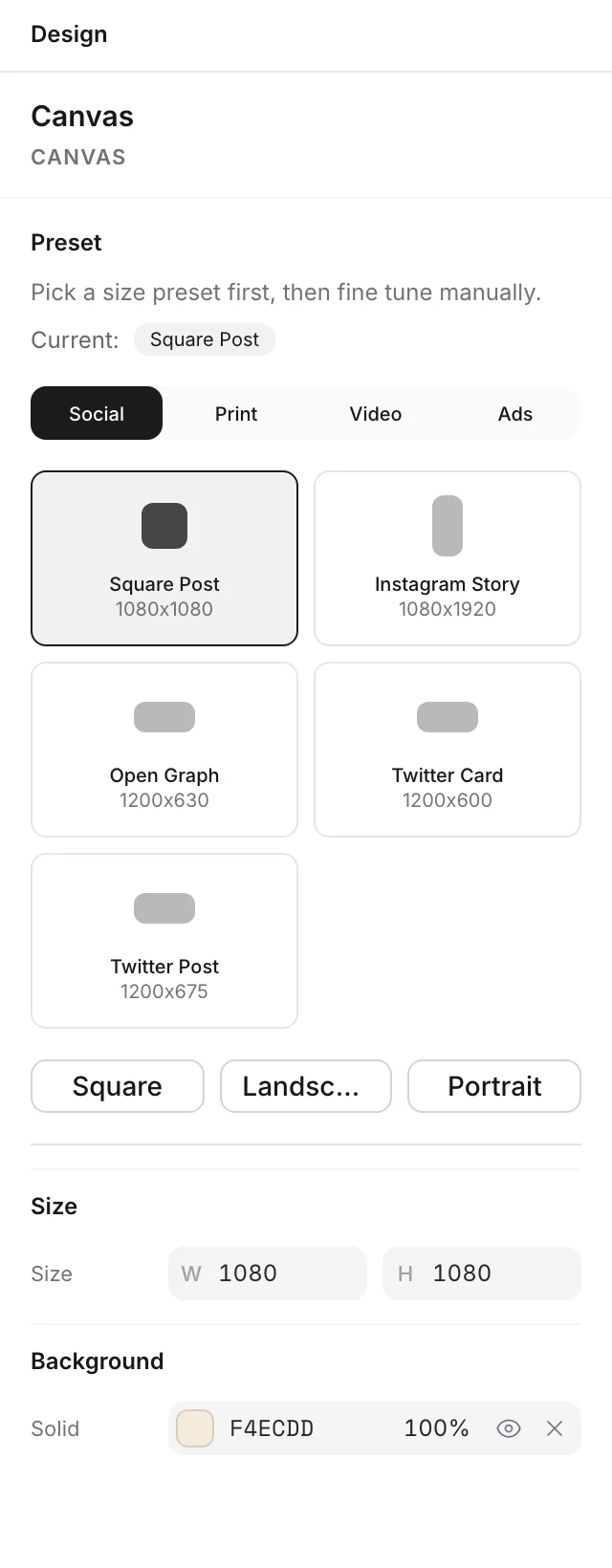 1. Pick a size in **Preset**. Choose a card under **Social**, **Print**, **Video**, or **Ads**, or use the **Square** (1080 by 1080 pixels) and **Portrait** (1080 by 1920) buttons under the cards.
2. Change the width and height in **Size** if the preset is close but not exact.
3. Set **Background** to a solid color, a gradient, or an image.
The canvas size is the size of the output. An image has that many pixels, and a PDF page has that many points, so a canvas for an A4 PDF is 595 by 842. A request cannot change the canvas.
## Add layers
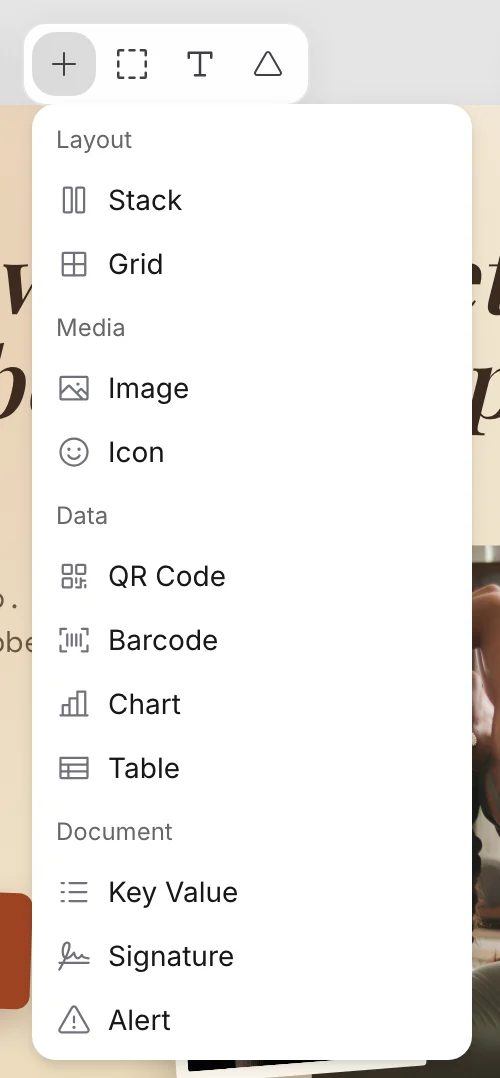
Use **Frame** and **Text** in the tool bar, or open **Insert** or **Shapes** for the other layer types. Select a layer, then use the **Design** panel to set where it sits and how it looks. Text layers use Google Fonts. [Layer types](https://bannerify.co/docs/essentials/elements) lists every type and the fields that a request can change.
1. Pick a size in **Preset**. Choose a card under **Social**, **Print**, **Video**, or **Ads**, or use the **Square** (1080 by 1080 pixels) and **Portrait** (1080 by 1920) buttons under the cards.
2. Change the width and height in **Size** if the preset is close but not exact.
3. Set **Background** to a solid color, a gradient, or an image.
The canvas size is the size of the output. An image has that many pixels, and a PDF page has that many points, so a canvas for an A4 PDF is 595 by 842. A request cannot change the canvas.
## Add layers
Use **Frame** and **Text** in the tool bar, or open **Insert** or **Shapes** for the other layer types. Select a layer, then use the **Design** panel to set where it sits and how it looks. Text layers use Google Fonts. [Layer types](https://bannerify.co/docs/essentials/elements) lists every type and the fields that a request can change.
 ## Name your layers
A request finds a layer by its name, so name every layer that a request changes.
1. Double-click the layer in the **Layers** list. You can also right-click it and choose **Rename**.
2. Type the name and press Enter.
A new layer gets the name of its type, such as `Text`, and the second layer of a type gets a number, such as `Text 1`. Pick names that read well in code, such as `headline` or `price`. The match is exact, so `Price` and `price` are two names, and two layers with the same name get the same value. [Modifications](https://bannerify.co/docs/essentials/modifications#name-your-layers) has the rules.
## Add images
Open the **Media** tab.
## Name your layers
A request finds a layer by its name, so name every layer that a request changes.
1. Double-click the layer in the **Layers** list. You can also right-click it and choose **Rename**.
2. Type the name and press Enter.
A new layer gets the name of its type, such as `Text`, and the second layer of a type gets a number, such as `Text 1`. Pick names that read well in code, such as `headline` or `price`. The match is exact, so `Price` and `price` are two names, and two layers with the same name get the same value. [Modifications](https://bannerify.co/docs/essentials/modifications#name-your-layers) has the rules.
## Add images
Open the **Media** tab.
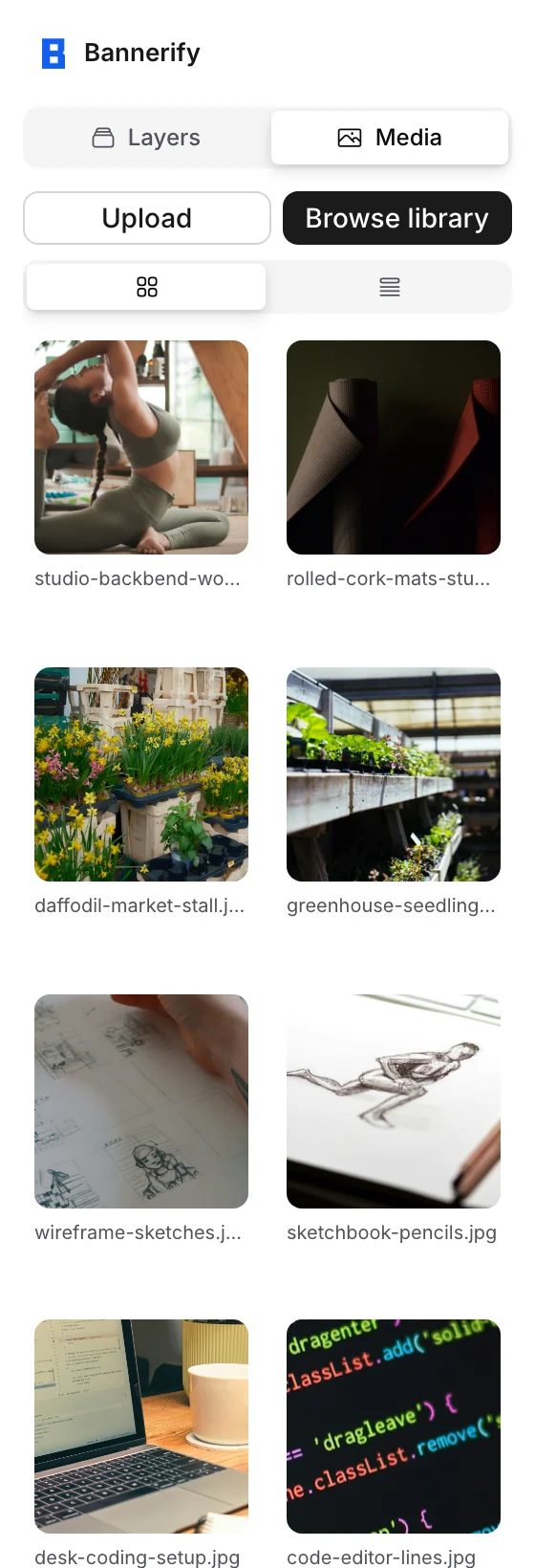 - Click **Upload** to add image files from your computer. Each file becomes an image layer on the canvas, and a file can be up to 5 MB.
- Click **Browse library** to search stock images. Select one and click **Add to Template**.
Use PNG, JPEG, WebP, or SVG files, because those are the types that Bannerify can render. An image layer can also point to an address. [Image](https://bannerify.co/docs/essentials/elements#image) shows the options.
## Preview your changes
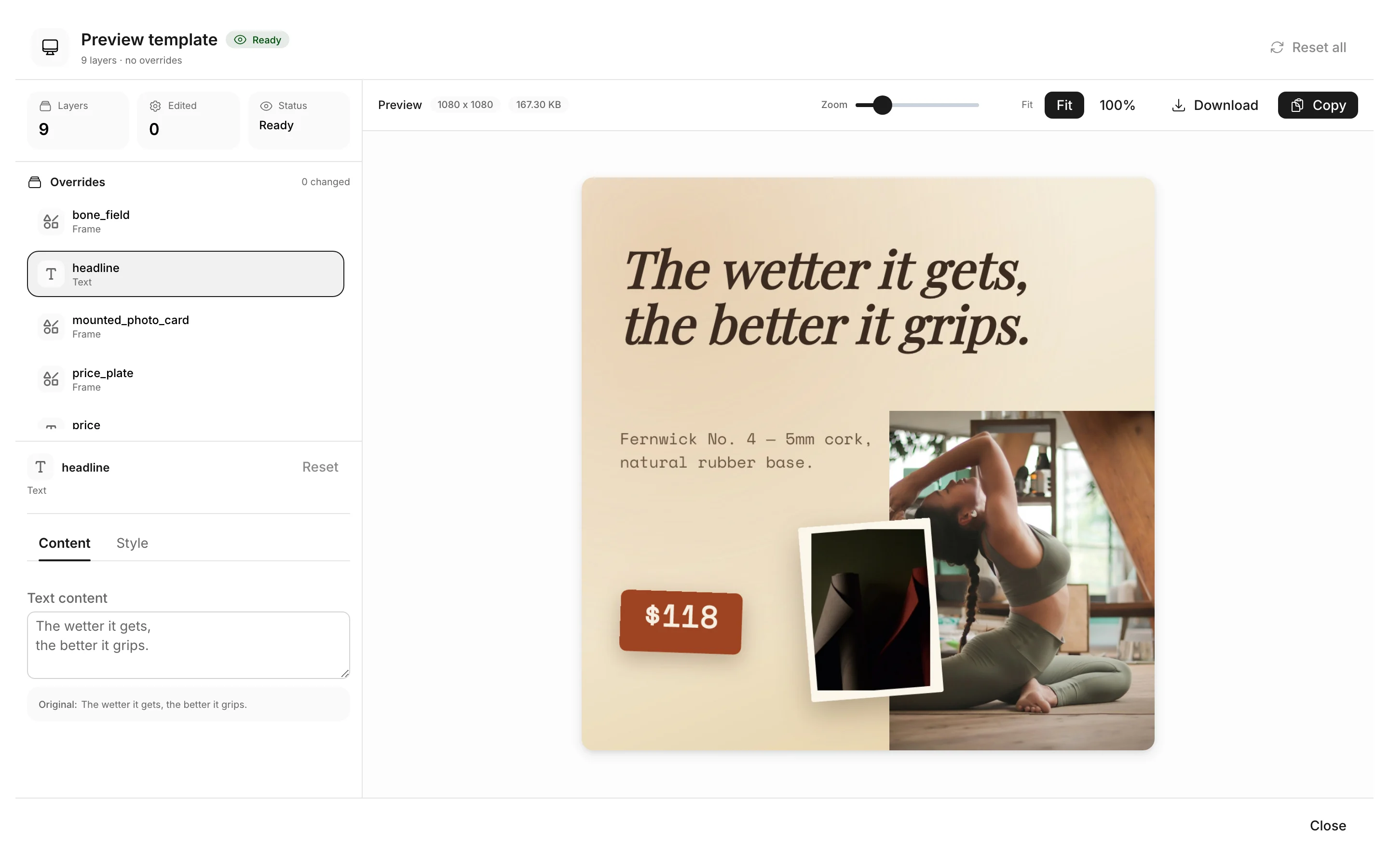
Click **Preview** in the top bar, or press Ctrl+P (Cmd+P on a Mac). The **Preview template** panel renders the canvas as it is now, including changes that you have not saved. It uses the same renderer as the API, it does not count toward your quota, and it always shows a PNG. A badge next to the title shows whether the image is **Rendering**, **Ready**, **Unsynced**, or **Render failed**.
The panel lists the layers of the template. Select a layer to try a value on it.
- Click **Upload** to add image files from your computer. Each file becomes an image layer on the canvas, and a file can be up to 5 MB.
- Click **Browse library** to search stock images. Select one and click **Add to Template**.
Use PNG, JPEG, WebP, or SVG files, because those are the types that Bannerify can render. An image layer can also point to an address. [Image](https://bannerify.co/docs/essentials/elements#image) shows the options.
## Preview your changes
Click **Preview** in the top bar, or press Ctrl+P (Cmd+P on a Mac). The **Preview template** panel renders the canvas as it is now, including changes that you have not saved. It uses the same renderer as the API, it does not count toward your quota, and it always shows a PNG. A badge next to the title shows whether the image is **Rendering**, **Ready**, **Unsynced**, or **Render failed**.
The panel lists the layers of the template. Select a layer to try a value on it.
 | Layer | What you can try |
| --- | --- |
| Text | **Text content** and **Text color** |
| Image | **Image URL** |
| QR code | **QR code content** |
| Barcode | **Barcode value** |
| Any layer | Show or hide it |
Other layer types show **Visibility only**, so test tables, charts, and key value layers in a request. The values that you enter in the panel are for testing and do not change the template. **Reset** and **Reset all** bring the original values back.
The panel warns about two naming problems:
- **Layer name required** means a layer has no name, so a request cannot change it.
- **Shared layer name** means several layers share a name, so a request applies the same value to each of them.
**Download** saves the preview image, and **Copy** copies it.
## Save the template
**Save** is off until you change something. Click it to store the template. API requests use the saved version, so save before you test a change through the API. If you leave the editor with unsaved changes, a dialog asks you to confirm.
## Copy the template id
On the **Templates** page, open the menu on a template card.
- **Copy Template ID** copies the id that a request sends as `templateId`.
- **View generations** opens the **Generations** page for this template, with the time, the format, the size, and the modifications of each generation.
## Next steps
- [Layer types](https://bannerify.co/docs/essentials/elements) describes each layer and its fields.
- [Recipes for common jobs](https://bannerify.co/docs/essentials/automation-blueprints) builds six templates and the requests for them.
- [Generate images](https://bannerify.co/docs/essentials/generate-images) and [Generate PDFs](https://bannerify.co/docs/essentials/generate-pdfs) cover the API.
## Related
- [Previous: Key concepts](https://bannerify.co/docs/glossary)
- [Next: Layer types](https://bannerify.co/docs/essentials/elements)
- [Documentation index](https://bannerify.co/docs/llms.txt)
| Layer | What you can try |
| --- | --- |
| Text | **Text content** and **Text color** |
| Image | **Image URL** |
| QR code | **QR code content** |
| Barcode | **Barcode value** |
| Any layer | Show or hide it |
Other layer types show **Visibility only**, so test tables, charts, and key value layers in a request. The values that you enter in the panel are for testing and do not change the template. **Reset** and **Reset all** bring the original values back.
The panel warns about two naming problems:
- **Layer name required** means a layer has no name, so a request cannot change it.
- **Shared layer name** means several layers share a name, so a request applies the same value to each of them.
**Download** saves the preview image, and **Copy** copies it.
## Save the template
**Save** is off until you change something. Click it to store the template. API requests use the saved version, so save before you test a change through the API. If you leave the editor with unsaved changes, a dialog asks you to confirm.
## Copy the template id
On the **Templates** page, open the menu on a template card.
- **Copy Template ID** copies the id that a request sends as `templateId`.
- **View generations** opens the **Generations** page for this template, with the time, the format, the size, and the modifications of each generation.
## Next steps
- [Layer types](https://bannerify.co/docs/essentials/elements) describes each layer and its fields.
- [Recipes for common jobs](https://bannerify.co/docs/essentials/automation-blueprints) builds six templates and the requests for them.
- [Generate images](https://bannerify.co/docs/essentials/generate-images) and [Generate PDFs](https://bannerify.co/docs/essentials/generate-pdfs) cover the API.
## Related
- [Previous: Key concepts](https://bannerify.co/docs/glossary)
- [Next: Layer types](https://bannerify.co/docs/essentials/elements)
- [Documentation index](https://bannerify.co/docs/llms.txt)