# Connect Notion
> Learn how to render a template from a Notion database and write the link of the file back to the page.
Canonical: https://bannerify.co/docs/integrations/notion
Use the Notion integration when your content lives in a Notion database. You connect a Notion workspace and bind a database to a template. Every new or changed page then renders a PNG or a PDF, and Bannerify writes the link of the file back to the page.
## How it works
1. Notion tells Bannerify that a page was created or that one of its properties changed.
2. Bannerify reads the page and puts the properties that you mapped into the layers of the template.
3. Bannerify renders the template and saves the file on its CDN, at a link that starts with `https://images.bannerify.co/files/`.
4. Bannerify writes the link to the property that you chose on the same page.
Each render counts as one generation. [Quota and limits](https://bannerify.co/docs/account/quota) lists the limits.
## Prerequisites
- A template with named layers. The mapping lists only the layers that have a name.
- A Notion database with a URL or Text property for the link, such as `Rendered URL`. Add it before you create the automation.
- A Notion workspace where you can add connections and share databases.
## Connect a Notion workspace
1. Open **Integrations** in the dashboard sidebar.
2. Click **Connect Notion**.
3. On the Notion screen, choose the pages and databases to share with Bannerify, then confirm.
Notion sends you back to **Integrations**. The card now shows the name of the workspace and the **Connected** badge.
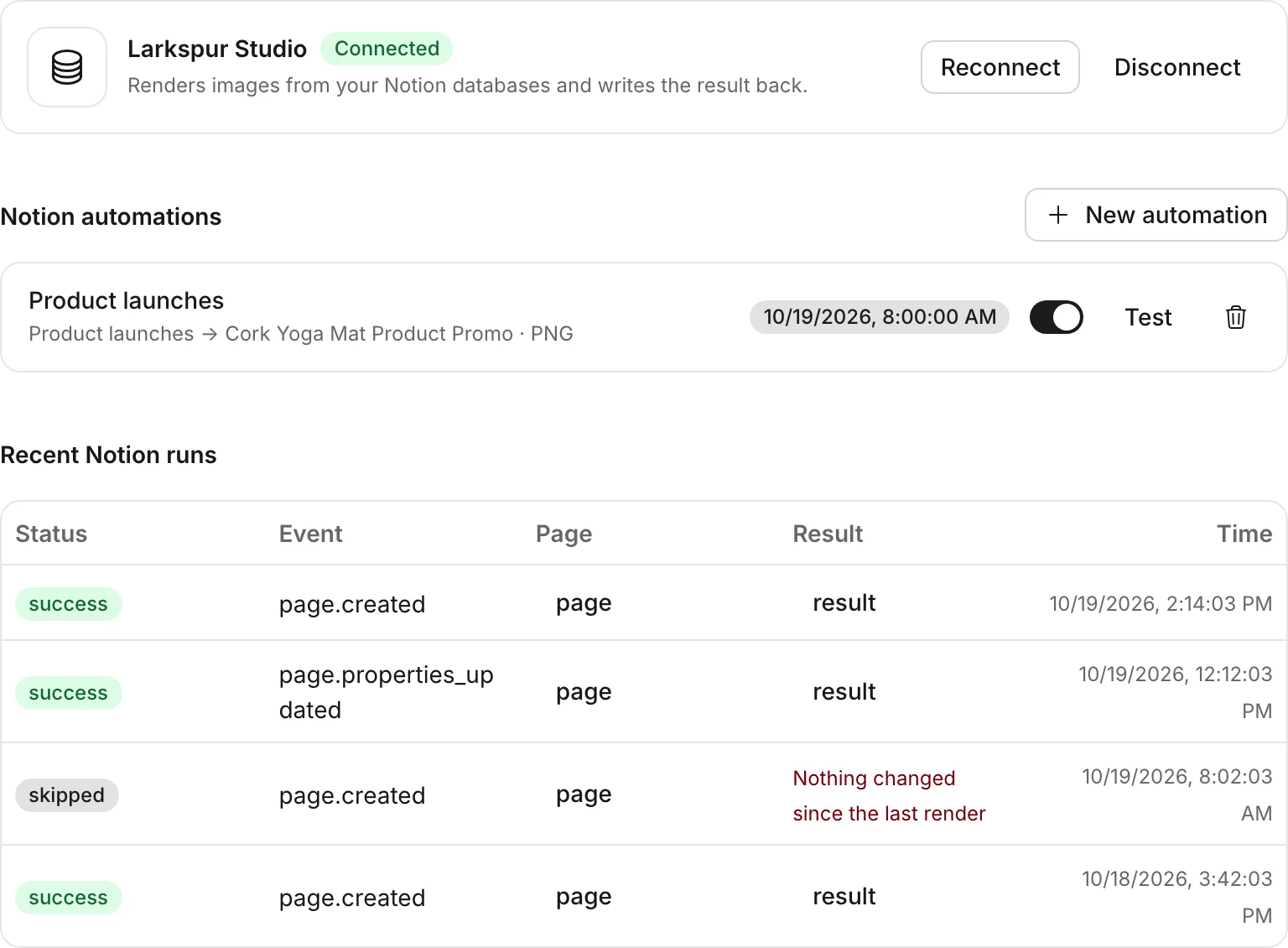 The connection belongs to the Bannerify workspace that you connected from, so every member of that workspace can create automations with it. A Notion workspace can connect to one Bannerify workspace at a time.
The card also has a **Reconnect** and a **Disconnect** button:
| Button | What it does |
| --- | --- |
| **Reconnect** | Opens the Notion screen again. Use it when the card shows **Reconnect needed** |
| **Disconnect** | Removes the connection, all automations, and the run history |
## Create an automation
1. Click **New automation**.
2. Enter a **Name**. If you leave it empty, Bannerify uses the name of the database.
3. Choose the **Notion database**, the **Template**, and the **Format**: **PNG image** or **PDF**.
4. Under **Run when**, choose **A page is created**, **A page is updated**, or both.
5. Under **Map Notion fields to layers**, choose a property for each layer that you want to fill. A layer set to **Not mapped** keeps the value from the template.
6. In **Write the render URL to**, choose a URL or Text property.
7. Click **Create automation**.
The mapping list appears after you choose a database and a template. Image layers offer Files properties, and all other layers offer the other property types.
**A page is updated** runs when a property changes. An edit to the body of a page does not run the automation.
Each automation has a switch to turn it on or off and a **Test** button. **Test** asks for a Notion page link or id, renders that page, and writes the link back, like a normal run. A test render counts as one generation.
## What Bannerify sends to the template
Bannerify turns every mapped property into text and sends it to the layer:
| Layer type | What the mapped value sets |
| --- | --- |
| Image | The image source. An empty value keeps the image from the template |
| Text | The text. An empty value clears it |
| Signature | The signer name |
| Alert | The body text |
| Any other type | Nothing. A QR code, a barcode, or a table reads other fields |
An image must be a PNG, JPEG, WebP, or SVG file. Notion-hosted file links expire after a short time, and Bannerify fetches the link as soon as it renders.
### How properties become text
| Notion property | Value |
| --- | --- |
| Title, Text | The plain text |
| Number | The number |
| Select, Status | The name of the option |
| Multi-select | The names of the options, separated by `, ` |
| People | The names, separated by `, ` |
| Date | `start/end` for a range, otherwise `start` |
| Checkbox | `true` or `false` |
| URL, Email, Phone | The value as written |
| Files | The link of the first file |
| Formula, Rollup | The result. A rollup of several values joins them with `, ` |
| Created time, Last edited time | The time as an ISO 8601 string |
| Created by, Last edited by | The name |
| Relation | The ids of the related pages, separated by `, ` |
| Unique ID | The number, with its prefix when the property has one |
A blank property gives an empty string. A property of any other type also gives an empty string.
## Limits and skipped runs
| Limit | Value |
| --- | --- |
| Renders for one automation | 60 per minute |
| Databases for one automation | 1 |
| Properties for one layer | 1 |
| Notion workspaces for one Bannerify workspace | 1 |
A run over the render limit fails with the message `Rate limited: more than 60 renders in a minute`.
Notion combines quick edits to a page into one event, and the event usually arrives within a minute.
Bannerify skips a run when the values that go into the image are the same as at the last successful run. That covers a second event for the same edit, and the event that follows when Bannerify writes the link back to the page. A skipped run does not render and does not count as a generation.
## Check the runs
The **Recent runs** table on the **Integrations** page lists the last 20 runs. Each row shows the status, the event, a link to the page, a link to the result or the error, and the time.
| Column | Values |
| --- | --- |
| Status | `pending` while a run is in progress, then `success`, `failed`, or `skipped` |
| Event | `page.created`, `page.properties_updated`, or `manual` for a test |
## Troubleshooting
| Problem | What to do |
| --- | --- |
| A database is missing from the picker | Share the database with the Bannerify connection in Notion, then open **New automation** again |
| Nothing runs when you edit a page | Check that the automation switch is on and that **A page is updated** is selected. Only a property change runs the automation, and the page must be in the database that you chose |
| The link does not appear on the page | The property for the link must be a URL or Text property. Open **Recent runs** to read the error |
| The card shows **Reconnect needed** | Notion rejected the saved token. Click **Reconnect** and finish the Notion screen |
| A run fails with a usage limit message | The workspace reached its daily or monthly limit. See [Quota and limits](https://bannerify.co/docs/account/quota) |
| An image layer keeps the template image | Map the layer to a Files property that holds a PNG, JPEG, WebP, or SVG file. Use **Test** to render the page again |
## Related
- [Previous: Connect Pipedream](https://bannerify.co/docs/integrations/pipedream)
- [Next: Embed the editor in your app](https://bannerify.co/docs/integrations/embed-editor)
- [Documentation index](https://bannerify.co/docs/llms.txt)
The connection belongs to the Bannerify workspace that you connected from, so every member of that workspace can create automations with it. A Notion workspace can connect to one Bannerify workspace at a time.
The card also has a **Reconnect** and a **Disconnect** button:
| Button | What it does |
| --- | --- |
| **Reconnect** | Opens the Notion screen again. Use it when the card shows **Reconnect needed** |
| **Disconnect** | Removes the connection, all automations, and the run history |
## Create an automation
1. Click **New automation**.
2. Enter a **Name**. If you leave it empty, Bannerify uses the name of the database.
3. Choose the **Notion database**, the **Template**, and the **Format**: **PNG image** or **PDF**.
4. Under **Run when**, choose **A page is created**, **A page is updated**, or both.
5. Under **Map Notion fields to layers**, choose a property for each layer that you want to fill. A layer set to **Not mapped** keeps the value from the template.
6. In **Write the render URL to**, choose a URL or Text property.
7. Click **Create automation**.
The mapping list appears after you choose a database and a template. Image layers offer Files properties, and all other layers offer the other property types.
**A page is updated** runs when a property changes. An edit to the body of a page does not run the automation.
Each automation has a switch to turn it on or off and a **Test** button. **Test** asks for a Notion page link or id, renders that page, and writes the link back, like a normal run. A test render counts as one generation.
## What Bannerify sends to the template
Bannerify turns every mapped property into text and sends it to the layer:
| Layer type | What the mapped value sets |
| --- | --- |
| Image | The image source. An empty value keeps the image from the template |
| Text | The text. An empty value clears it |
| Signature | The signer name |
| Alert | The body text |
| Any other type | Nothing. A QR code, a barcode, or a table reads other fields |
An image must be a PNG, JPEG, WebP, or SVG file. Notion-hosted file links expire after a short time, and Bannerify fetches the link as soon as it renders.
### How properties become text
| Notion property | Value |
| --- | --- |
| Title, Text | The plain text |
| Number | The number |
| Select, Status | The name of the option |
| Multi-select | The names of the options, separated by `, ` |
| People | The names, separated by `, ` |
| Date | `start/end` for a range, otherwise `start` |
| Checkbox | `true` or `false` |
| URL, Email, Phone | The value as written |
| Files | The link of the first file |
| Formula, Rollup | The result. A rollup of several values joins them with `, ` |
| Created time, Last edited time | The time as an ISO 8601 string |
| Created by, Last edited by | The name |
| Relation | The ids of the related pages, separated by `, ` |
| Unique ID | The number, with its prefix when the property has one |
A blank property gives an empty string. A property of any other type also gives an empty string.
## Limits and skipped runs
| Limit | Value |
| --- | --- |
| Renders for one automation | 60 per minute |
| Databases for one automation | 1 |
| Properties for one layer | 1 |
| Notion workspaces for one Bannerify workspace | 1 |
A run over the render limit fails with the message `Rate limited: more than 60 renders in a minute`.
Notion combines quick edits to a page into one event, and the event usually arrives within a minute.
Bannerify skips a run when the values that go into the image are the same as at the last successful run. That covers a second event for the same edit, and the event that follows when Bannerify writes the link back to the page. A skipped run does not render and does not count as a generation.
## Check the runs
The **Recent runs** table on the **Integrations** page lists the last 20 runs. Each row shows the status, the event, a link to the page, a link to the result or the error, and the time.
| Column | Values |
| --- | --- |
| Status | `pending` while a run is in progress, then `success`, `failed`, or `skipped` |
| Event | `page.created`, `page.properties_updated`, or `manual` for a test |
## Troubleshooting
| Problem | What to do |
| --- | --- |
| A database is missing from the picker | Share the database with the Bannerify connection in Notion, then open **New automation** again |
| Nothing runs when you edit a page | Check that the automation switch is on and that **A page is updated** is selected. Only a property change runs the automation, and the page must be in the database that you chose |
| The link does not appear on the page | The property for the link must be a URL or Text property. Open **Recent runs** to read the error |
| The card shows **Reconnect needed** | Notion rejected the saved token. Click **Reconnect** and finish the Notion screen |
| A run fails with a usage limit message | The workspace reached its daily or monthly limit. See [Quota and limits](https://bannerify.co/docs/account/quota) |
| An image layer keeps the template image | Map the layer to a Files property that holds a PNG, JPEG, WebP, or SVG file. Use **Test** to render the page again |
## Related
- [Previous: Connect Pipedream](https://bannerify.co/docs/integrations/pipedream)
- [Next: Embed the editor in your app](https://bannerify.co/docs/integrations/embed-editor)
- [Documentation index](https://bannerify.co/docs/llms.txt)