# Connect an MCP client
> Learn how to connect Claude, Cursor, VS Code, or another MCP client to Bannerify and generate images and PDFs from a chat.
Canonical: https://bannerify.co/docs/mcp/overview
Bannerify runs a Model Context Protocol (MCP) server at `https://api.bannerify.co/mcp`. This page is for anyone who works with an AI assistant, such as Claude, Cursor, or VS Code, and wants it to use their Bannerify templates. Once the server is connected, the assistant can:
- List your templates and the layers you can change in each one.
- Generate an image or a PDF from a template.
- Compose a one-off image from shapes when no template fits.
## Before you start
- A Bannerify account. The template tools need at least one template, and composing an image from shapes needs none.
- An MCP client that supports remote servers over HTTP and OAuth sign-in.
## Add the server
The server URL is `https://api.bannerify.co/mcp`, and it uses the Streamable HTTP transport. The **Agents & MCP** page in the dashboard shows the same setup steps for each client, with buttons to copy the URL and the commands.
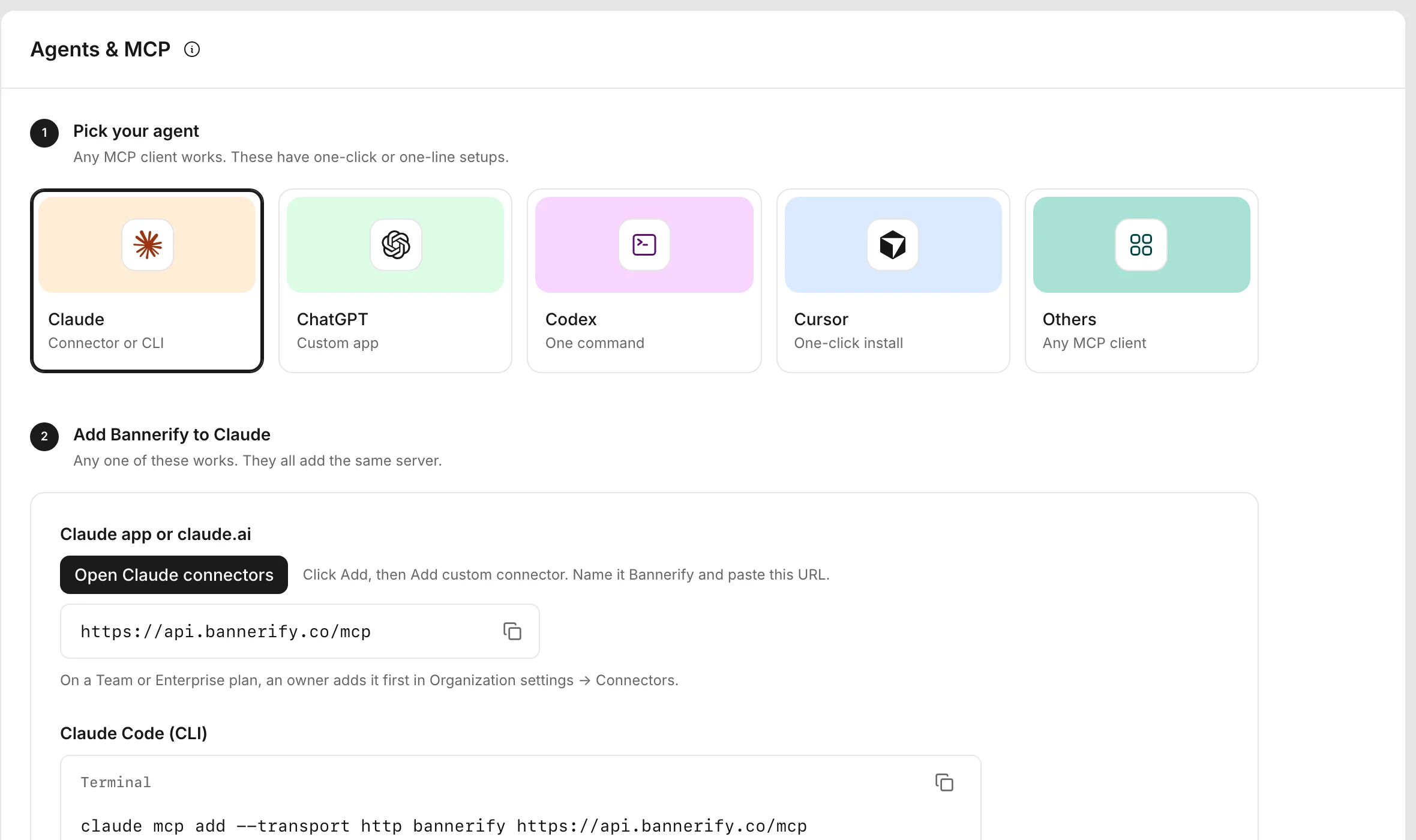 Add the server, then start the sign-in from inside Claude Code:
```bash
claude mcp add --transport http bannerify https://api.bannerify.co/mcp
```
Run `/mcp` in Claude Code and follow the steps in your browser.
To share the server with your team, put a `.mcp.json` file at the root of your project:
```json
{
"mcpServers": {
"bannerify": {
"type": "http",
"url": "https://api.bannerify.co/mcp"
}
}
}
```
Claude adds a remote server as a custom connector. On the web:
1. Open **Customize > Connectors**.
2. Click **+ Add**, then **Add custom connector**.
3. Enter `Bannerify` as the name and `https://api.bannerify.co/mcp` as the remote MCP server URL, then click **Continue**.
4. Finish the prompts and click **Add**.
On a Team or Enterprise plan, an owner adds the connector first in **Organization settings > Connectors**.
The Claude desktop app gets its connectors from your Claude account. Do not add the server to `claude_desktop_config.json`: that file is for local servers only.
The [Claude help article on custom connectors](https://support.claude.com/en/articles/11175166-get-started-with-custom-connectors-using-remote-mcp) lists which plans can add one.
Add the server to `.cursor/mcp.json` in your project, or to `~/.cursor/mcp.json` for every project:
```json
{
"mcpServers": {
"bannerify": {
"url": "https://api.bannerify.co/mcp"
}
}
}
```
Cursor supports OAuth sign-in for remote servers.
Add the server to `.vscode/mcp.json` in your project:
```json
{
"servers": {
"bannerify": {
"type": "http",
"url": "https://api.bannerify.co/mcp"
}
}
}
```
Add the server, then sign in:
```bash
codex mcp add bannerify --url https://api.bannerify.co/mcp
codex mcp login bannerify
```
The second command opens the Bannerify sign-in page in your browser.
For another client, enter the same URL and choose the HTTP transport with OAuth sign-in.
## Sign in
The first time your client connects, it has no token, so Bannerify sends it to the sign-in page. Your client opens that page in a browser. After you sign in, the client keeps the token and sends it with each request. You create no API key and copy no token.
The exchange works in four steps:
1. The client sends a request to `https://api.bannerify.co/mcp` with no token. The server answers with HTTP 401 and a `WWW-Authenticate` header that points to its metadata at `https://api.bannerify.co/.well-known/oauth-protected-resource/mcp`.
2. The metadata names the sign-in service, and the client sends you there.
3. You sign in, and the client receives an access token.
4. The client sends the token as `Authorization: Bearer ` with each request. Bannerify checks the signature, the expiry, and that the token was issued for the MCP URL.
| Detail | Value |
| --- | --- |
| Valid for | `https://api.bannerify.co/mcp` only. A token issued for another URL gets HTTP 401 |
| Workspace | The team workspace in the token. A token without a team workspace gives your personal workspace |
| Invalid or expired token | HTTP 401 with the error `invalid_token`. The client signs in again |
| Token storage | Bannerify does not store the token. The server verifies it on each request |
## Ask for a file
Give the assistant a plain request:
```text
List my Bannerify templates, with the layers of each one.
```
```text
Create a PNG from my "Lifecycle email" template. Set the headline to "Welcome back, An" and the qr layer to https://example.com/restart.
```
```text
Create a PDF from my invoice template for Acme Studio.
```
```text
Design a 1200 by 630 banner with a dark background and the text "Launch week", then show me the image.
```
```text
Which plan is my Bannerify workspace on?
```
The assistant picks the tools it needs from [Generate files with MCP tools](https://bannerify.co/docs/mcp/tools), renders the file, and shows you the result.
## Usage and limits
A generation from an MCP client counts toward the same monthly and daily limits as the REST API and the SDKs. The plan of the connected workspace applies.
| Tool | Counts as a generation |
| --- | --- |
| `create_image`, `create_pdf`, `create_image_from_shapes` | Yes |
| `list_templates`, `get_template`, `get_project` | No |
A render that fails does not count. A team workspace on the Free plan cannot generate files, and a new team workspace starts with a 14-day Automate 3k trial. The MCP server has no request rate limit. [Quota and limits](https://bannerify.co/docs/account/quota) has the limit of each plan.
## Disconnect
Remove the server from your MCP client, or remove the connector in Claude. The client stops sending its token. Bannerify keeps no copy of the token, so the token stops working when it expires.
## Troubleshoot
| Symptom | Fix |
| --- | --- |
| The client reports HTTP 401, or asks you to sign in again | The token is missing or has expired. Sign in again from your client |
| The browser does not open a sign-in page | Use a client that supports remote MCP servers over HTTP with OAuth sign-in |
| The Claude app does not show Bannerify | Add it as a custom connector in **Customize > Connectors**, not in `claude_desktop_config.json` |
| The assistant sees no templates | Ask it to run `get_project`. If the name shows a different workspace than the one with your templates, remove the server and connect again |
| `NOT_FOUND` for a template | Ask the assistant to run `list_templates` and use an id from the result. The tools see only the templates of the connected workspace |
| `USAGE_EXCEEDED` | The workspace reached its limit. See [Quota and limits](https://bannerify.co/docs/account/quota) |
## Learn more
- [Generate files with MCP tools](https://bannerify.co/docs/mcp/tools)
- [Quota and limits](https://bannerify.co/docs/account/quota)
- [Generate from the terminal](https://bannerify.co/docs/cli/overview)
## Related
- [Previous: Save files to your own S3 bucket](https://bannerify.co/docs/integrations/storage-and-notifications)
- [Next: Generate files with MCP tools](https://bannerify.co/docs/mcp/tools)
- [Documentation index](https://bannerify.co/docs/llms.txt)
Add the server, then start the sign-in from inside Claude Code:
```bash
claude mcp add --transport http bannerify https://api.bannerify.co/mcp
```
Run `/mcp` in Claude Code and follow the steps in your browser.
To share the server with your team, put a `.mcp.json` file at the root of your project:
```json
{
"mcpServers": {
"bannerify": {
"type": "http",
"url": "https://api.bannerify.co/mcp"
}
}
}
```
Claude adds a remote server as a custom connector. On the web:
1. Open **Customize > Connectors**.
2. Click **+ Add**, then **Add custom connector**.
3. Enter `Bannerify` as the name and `https://api.bannerify.co/mcp` as the remote MCP server URL, then click **Continue**.
4. Finish the prompts and click **Add**.
On a Team or Enterprise plan, an owner adds the connector first in **Organization settings > Connectors**.
The Claude desktop app gets its connectors from your Claude account. Do not add the server to `claude_desktop_config.json`: that file is for local servers only.
The [Claude help article on custom connectors](https://support.claude.com/en/articles/11175166-get-started-with-custom-connectors-using-remote-mcp) lists which plans can add one.
Add the server to `.cursor/mcp.json` in your project, or to `~/.cursor/mcp.json` for every project:
```json
{
"mcpServers": {
"bannerify": {
"url": "https://api.bannerify.co/mcp"
}
}
}
```
Cursor supports OAuth sign-in for remote servers.
Add the server to `.vscode/mcp.json` in your project:
```json
{
"servers": {
"bannerify": {
"type": "http",
"url": "https://api.bannerify.co/mcp"
}
}
}
```
Add the server, then sign in:
```bash
codex mcp add bannerify --url https://api.bannerify.co/mcp
codex mcp login bannerify
```
The second command opens the Bannerify sign-in page in your browser.
For another client, enter the same URL and choose the HTTP transport with OAuth sign-in.
## Sign in
The first time your client connects, it has no token, so Bannerify sends it to the sign-in page. Your client opens that page in a browser. After you sign in, the client keeps the token and sends it with each request. You create no API key and copy no token.
The exchange works in four steps:
1. The client sends a request to `https://api.bannerify.co/mcp` with no token. The server answers with HTTP 401 and a `WWW-Authenticate` header that points to its metadata at `https://api.bannerify.co/.well-known/oauth-protected-resource/mcp`.
2. The metadata names the sign-in service, and the client sends you there.
3. You sign in, and the client receives an access token.
4. The client sends the token as `Authorization: Bearer ` with each request. Bannerify checks the signature, the expiry, and that the token was issued for the MCP URL.
| Detail | Value |
| --- | --- |
| Valid for | `https://api.bannerify.co/mcp` only. A token issued for another URL gets HTTP 401 |
| Workspace | The team workspace in the token. A token without a team workspace gives your personal workspace |
| Invalid or expired token | HTTP 401 with the error `invalid_token`. The client signs in again |
| Token storage | Bannerify does not store the token. The server verifies it on each request |
## Ask for a file
Give the assistant a plain request:
```text
List my Bannerify templates, with the layers of each one.
```
```text
Create a PNG from my "Lifecycle email" template. Set the headline to "Welcome back, An" and the qr layer to https://example.com/restart.
```
```text
Create a PDF from my invoice template for Acme Studio.
```
```text
Design a 1200 by 630 banner with a dark background and the text "Launch week", then show me the image.
```
```text
Which plan is my Bannerify workspace on?
```
The assistant picks the tools it needs from [Generate files with MCP tools](https://bannerify.co/docs/mcp/tools), renders the file, and shows you the result.
## Usage and limits
A generation from an MCP client counts toward the same monthly and daily limits as the REST API and the SDKs. The plan of the connected workspace applies.
| Tool | Counts as a generation |
| --- | --- |
| `create_image`, `create_pdf`, `create_image_from_shapes` | Yes |
| `list_templates`, `get_template`, `get_project` | No |
A render that fails does not count. A team workspace on the Free plan cannot generate files, and a new team workspace starts with a 14-day Automate 3k trial. The MCP server has no request rate limit. [Quota and limits](https://bannerify.co/docs/account/quota) has the limit of each plan.
## Disconnect
Remove the server from your MCP client, or remove the connector in Claude. The client stops sending its token. Bannerify keeps no copy of the token, so the token stops working when it expires.
## Troubleshoot
| Symptom | Fix |
| --- | --- |
| The client reports HTTP 401, or asks you to sign in again | The token is missing or has expired. Sign in again from your client |
| The browser does not open a sign-in page | Use a client that supports remote MCP servers over HTTP with OAuth sign-in |
| The Claude app does not show Bannerify | Add it as a custom connector in **Customize > Connectors**, not in `claude_desktop_config.json` |
| The assistant sees no templates | Ask it to run `get_project`. If the name shows a different workspace than the one with your templates, remove the server and connect again |
| `NOT_FOUND` for a template | Ask the assistant to run `list_templates` and use an id from the result. The tools see only the templates of the connected workspace |
| `USAGE_EXCEEDED` | The workspace reached its limit. See [Quota and limits](https://bannerify.co/docs/account/quota) |
## Learn more
- [Generate files with MCP tools](https://bannerify.co/docs/mcp/tools)
- [Quota and limits](https://bannerify.co/docs/account/quota)
- [Generate from the terminal](https://bannerify.co/docs/cli/overview)
## Related
- [Previous: Save files to your own S3 bucket](https://bannerify.co/docs/integrations/storage-and-notifications)
- [Next: Generate files with MCP tools](https://bannerify.co/docs/mcp/tools)
- [Documentation index](https://bannerify.co/docs/llms.txt)