# Quickstart
> Learn how to create an API key, design a template, and generate your first image with Bannerify.
Canonical: https://bannerify.co/docs/onboarding
In this guide you create an API key, build a template with one named text layer, and generate an image from a request. It takes a few minutes.
You need a Bannerify account. Sign up at [app.bannerify.co](https://app.bannerify.co). Your Personal project is on the Free plan, which allows 100 generations a month and 10 a day. The image you make here counts as one.
## 1. Create an API key
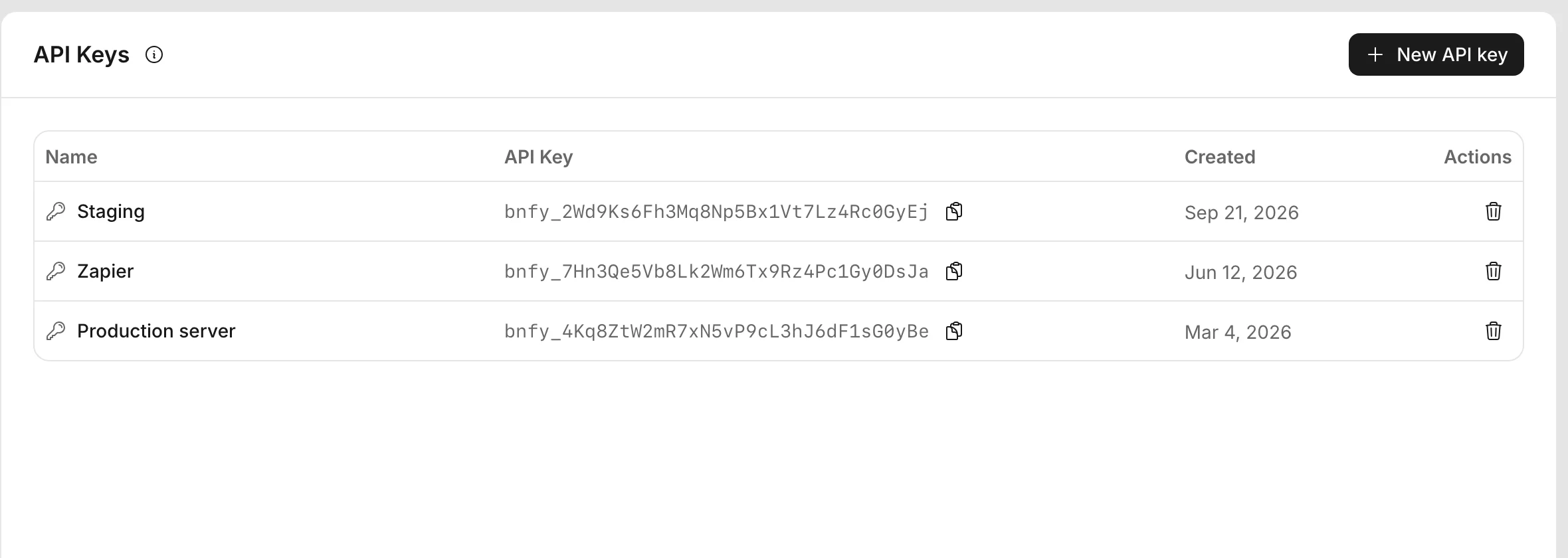
1. Open the **API Keys** page in the dashboard.
2. Click **New API key**, enter a name, and click **Create**.
3. Click **Copy key** on the new row and store the key in a safe place.
 Keep the key on your server. [Authenticate requests](https://bannerify.co/docs/api-reference/authentication) explains how to send it and how to replace it.
## 2. Create a template
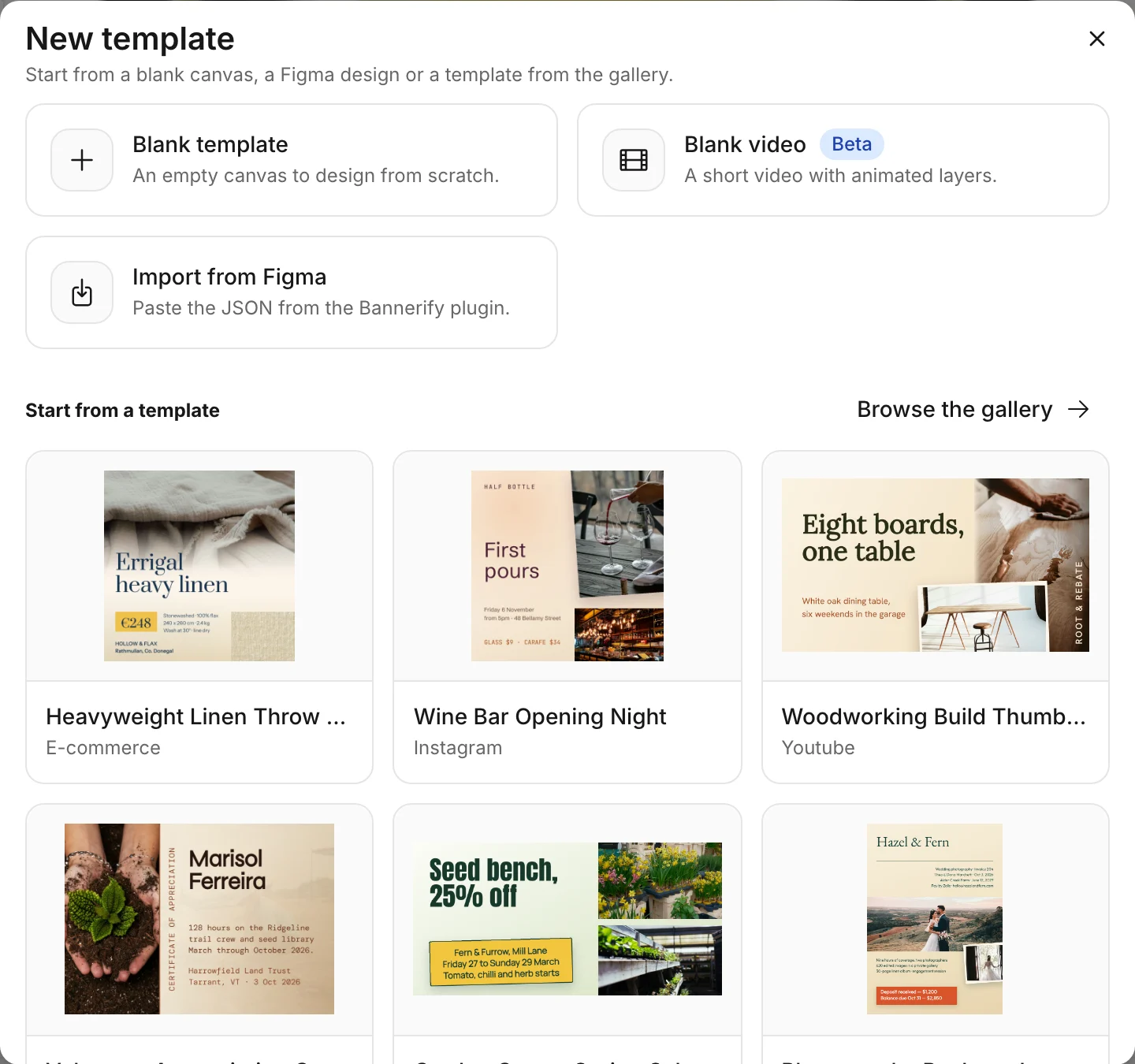
1. Open the **Templates** page, click **New template**, and click **Blank template**. The editor opens.
Keep the key on your server. [Authenticate requests](https://bannerify.co/docs/api-reference/authentication) explains how to send it and how to replace it.
## 2. Create a template
1. Open the **Templates** page, click **New template**, and click **Blank template**. The editor opens.
 2. Click **Text** in the top bar, then click the canvas to add a text layer.
3. Double-click the layer in the **Layers** list, type `headline`, and press Enter.
4. Click **Save**.
5. Go back to the **Templates** page, open the menu on your template card, and click **Copy Template ID**.
2. Click **Text** in the top bar, then click the canvas to add a text layer.
3. Double-click the layer in the **Layers** list, type `headline`, and press Enter.
4. Click **Save**.
5. Go back to the **Templates** page, open the menu on your template card, and click **Copy Template ID**.
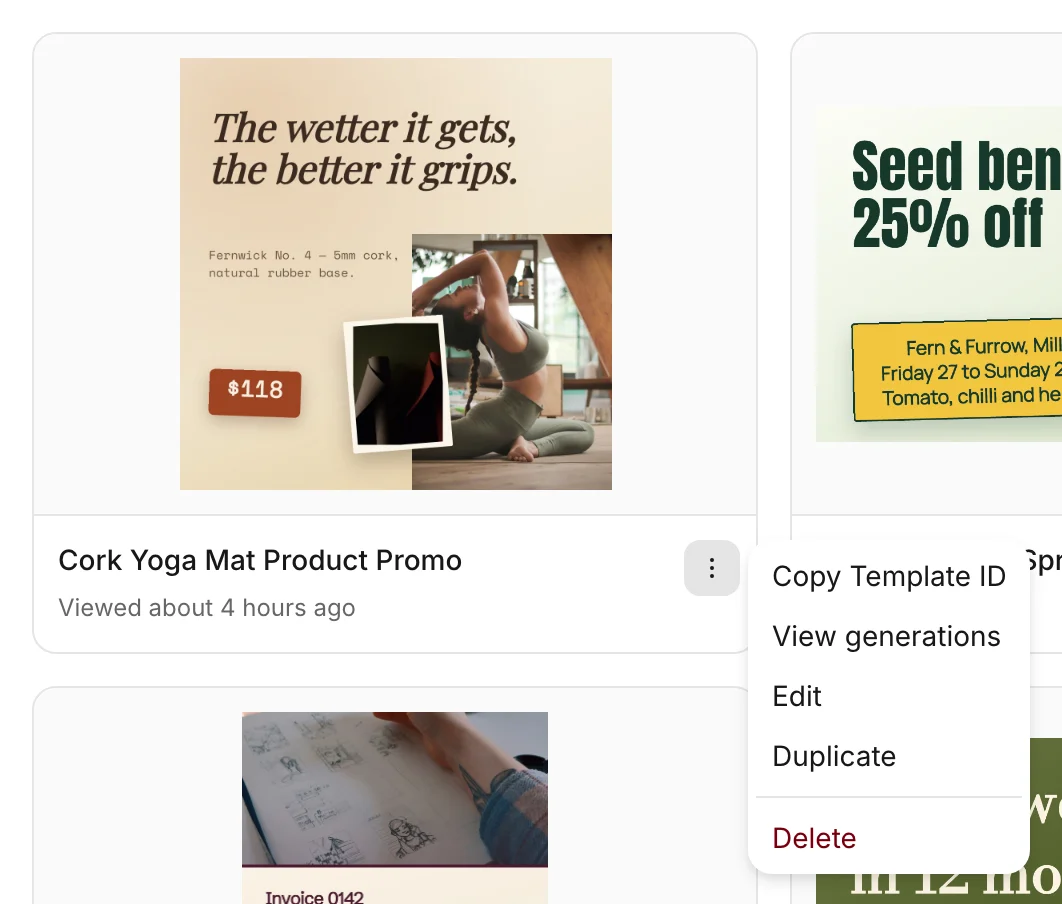 The layer name is how a request finds the layer. To start from a design instead, pick a card under **Start from a template** in step 1. [Design a template](https://bannerify.co/docs/essentials/template-editor) shows the rest of the editor.
## 3. Generate an image
Send the template id and one modification that sets the text of `headline`.
```bash
curl --request POST \
--url https://api.bannerify.co/v1/templates/createImage \
--header 'Content-Type: application/json' \
--output banner.png \
--data '{
"apiKey": "YOUR_API_KEY",
"templateId": "tpl_xxx",
"modifications": [
{ "name": "headline", "text": "Hello from the API" }
]
}'
```
```ts
import { writeFile } from "node:fs/promises"
import { Bannerify } from "bannerify-js"
const bannerify = new Bannerify(process.env.BANNERIFY_API_KEY!)
const { result, error } = await bannerify.createImage("tpl_xxx", {
modifications: [{ name: "headline", text: "Hello from the API" }],
})
if (error) throw new Error(error.message)
await writeFile("banner.png", Buffer.from(result))
```
Open `banner.png`. It is your template with the new headline. If the request fails, the response is JSON with an `error` object, and [Handle errors](https://bannerify.co/docs/api-reference/errors/introduction) lists the codes.
## Next steps
Change text, images, QR codes, and tables from a request
Pick a format, set the quality, and get a hosted URL
Show a generated image in a web page or an email
Generate images from Zapier, n8n, or Notion
## Related
- [Previous: Introduction](https://bannerify.co/docs)
- [Next: Key concepts](https://bannerify.co/docs/glossary)
- [Documentation index](https://bannerify.co/docs/llms.txt)
The layer name is how a request finds the layer. To start from a design instead, pick a card under **Start from a template** in step 1. [Design a template](https://bannerify.co/docs/essentials/template-editor) shows the rest of the editor.
## 3. Generate an image
Send the template id and one modification that sets the text of `headline`.
```bash
curl --request POST \
--url https://api.bannerify.co/v1/templates/createImage \
--header 'Content-Type: application/json' \
--output banner.png \
--data '{
"apiKey": "YOUR_API_KEY",
"templateId": "tpl_xxx",
"modifications": [
{ "name": "headline", "text": "Hello from the API" }
]
}'
```
```ts
import { writeFile } from "node:fs/promises"
import { Bannerify } from "bannerify-js"
const bannerify = new Bannerify(process.env.BANNERIFY_API_KEY!)
const { result, error } = await bannerify.createImage("tpl_xxx", {
modifications: [{ name: "headline", text: "Hello from the API" }],
})
if (error) throw new Error(error.message)
await writeFile("banner.png", Buffer.from(result))
```
Open `banner.png`. It is your template with the new headline. If the request fails, the response is JSON with an `error` object, and [Handle errors](https://bannerify.co/docs/api-reference/errors/introduction) lists the codes.
## Next steps
Change text, images, QR codes, and tables from a request
Pick a format, set the quality, and get a hosted URL
Show a generated image in a web page or an email
Generate images from Zapier, n8n, or Notion
## Related
- [Previous: Introduction](https://bannerify.co/docs)
- [Next: Key concepts](https://bannerify.co/docs/glossary)
- [Documentation index](https://bannerify.co/docs/llms.txt)