開始使用
快速入門
了解如何建立 API 金鑰、設計範本,並用 Bannerify 生成你的第一張圖片。
在這份指南中,你會建立 API 金鑰、做出一個含有一個已命名文字圖層的範本,然後用請求生成圖片。整個過程只需要幾分鐘。
你需要一個 Bannerify 帳號。請到 app.bannerify.co 註冊。你的 Personal 專案使用 Free 方案,每月可生成 100 次,每天 10 次。你在這裡生成的圖片會計為一次。
1. 建立 API 金鑰
- 在儀表板中開啟 API Keys 頁面。
- 點選 New API key,輸入名稱,再點選 Create。
- 點選新資料列上的 Copy key,並把金鑰存放在安全的地方。
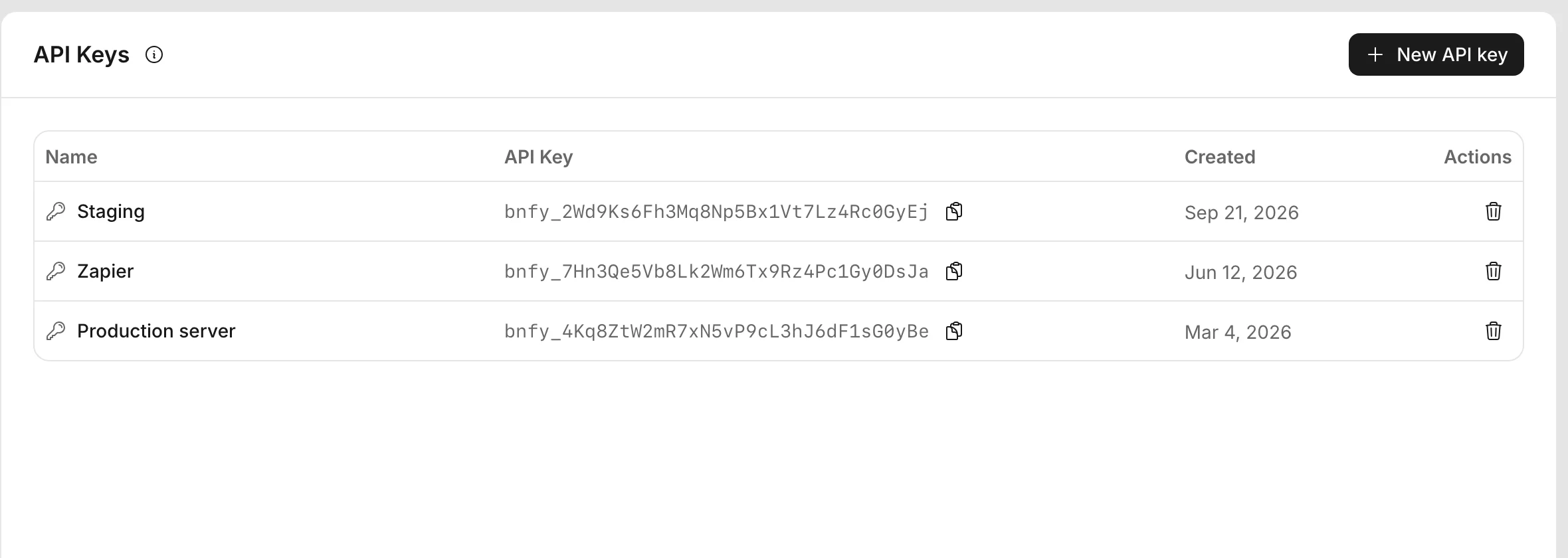
請把金鑰留在你的伺服器上。驗證請求說明了如何傳送金鑰,以及如何更換金鑰。
2. 建立範本
-
開啟 Templates 頁面,點選 New template,再點選 Blank template。編輯器隨即開啟。
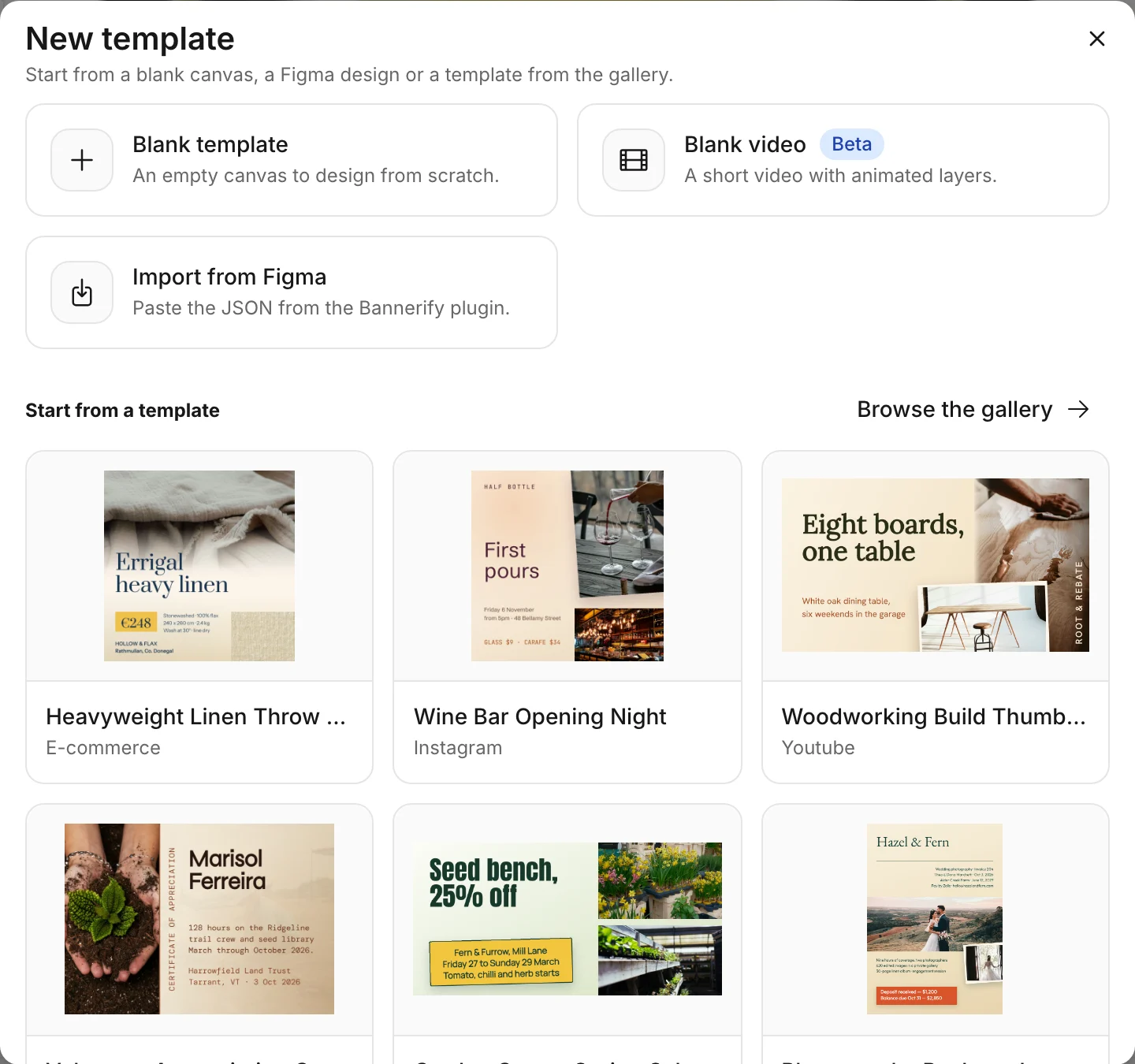
可以從空白畫布、Figma 匯出檔或圖庫範本開始。 -
點選頂端列的 Text,再點選畫布,新增一個文字圖層。
-
在 Layers 清單中連按兩下該圖層,輸入
headline,然後按 Enter。 -
點選 Save。
-
回到 Templates 頁面,開啟你的範本卡片選單,點選 Copy Template ID。
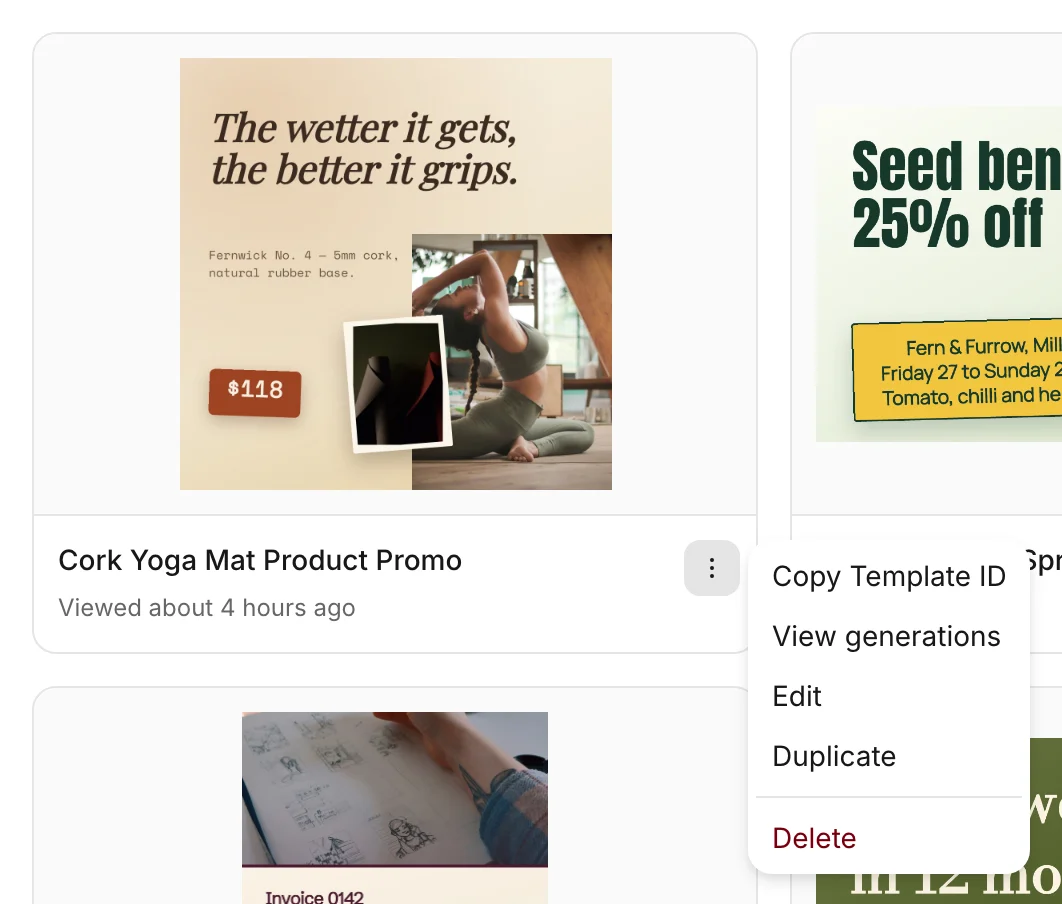
請求是靠圖層名稱找到圖層的。如果想從現成的設計開始,可以在步驟 1 中選擇 Start from a template 下方的卡片。設計範本會介紹編輯器的其他功能。
3. 生成圖片
傳送範本 ID,以及一個設定 headline 文字的 modification。
Examples
Open only what you need
curl
curl --request POST \
  --url https://api.bannerify.co/v1/templates/createImage \
  --header 'Content-Type: application/json' \
  --output banner.png \
  --data '{
    "apiKey": "YOUR_API_KEY",
    "templateId": "tpl_xxx",
    "modifications": [
      { "name": "headline", "text": "Hello from the API" }
    ]
  }'
JavaScript
import { writeFile } from "node:fs/promises"
import { Bannerify } from "bannerify-js"

const bannerify = new Bannerify(process.env.BANNERIFY_API_KEY!)

const { result, error } = await bannerify.createImage("tpl_xxx", {
  modifications: [{ name: "headline", text: "Hello from the API" }],
})

if (error) throw new Error(error.message)

await writeFile("banner.png", Buffer.from(result))
開啟 banner.png,就能看到套用了新標題的範本圖片。如果請求失敗,回應會是含有 error 物件的 JSON,錯誤代碼請見處理錯誤。