Get Started
Quickstart
Learn how to create an API key, design a template, and generate your first image with Bannerify.
In this guide you create an API key, build a template with one named text layer, and generate an image from a request. It takes a few minutes.
You need a Bannerify account. Sign up at app.bannerify.co. Your Personal project is on the Free plan, which allows 100 generations a month and 10 a day. The image you make here counts as one.
1. Create an API key
- Open the API Keys page in the dashboard.
- Click New API key, enter a name, and click Create.
- Click Copy key on the new row and store the key in a safe place.
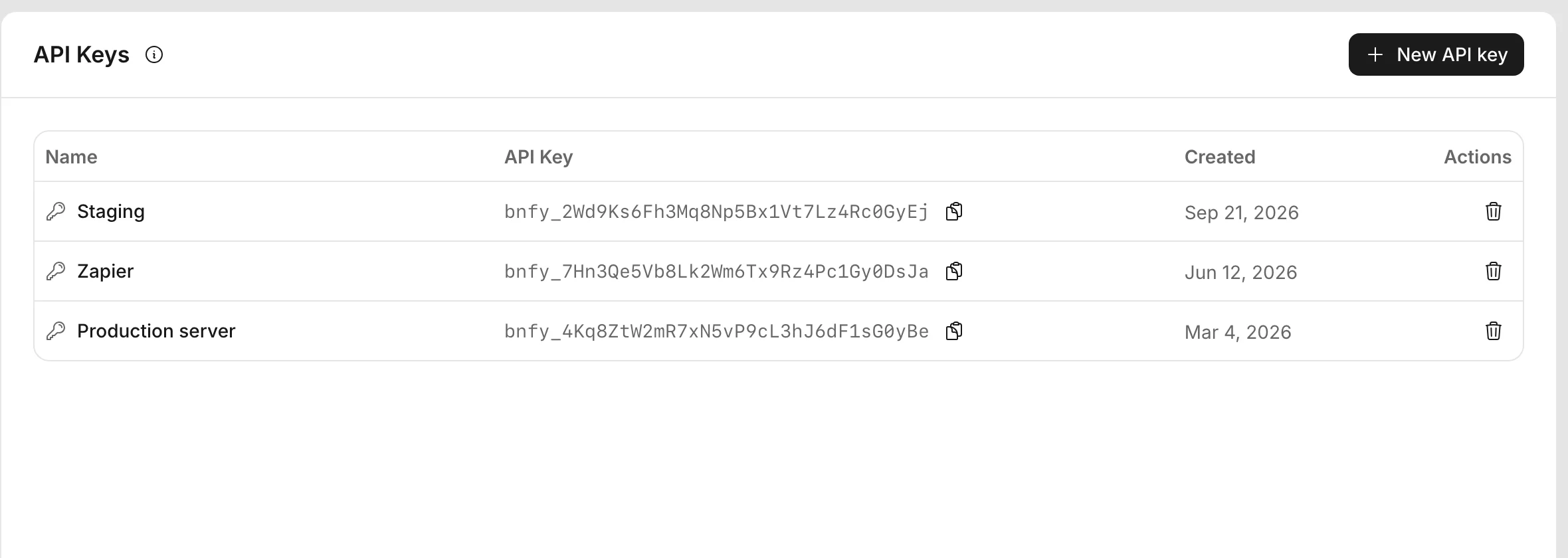
Keep the key on your server. Authenticate requests explains how to send it and how to replace it.
2. Create a template
-
Open the Templates page, click New template, and click Blank template. The editor opens.
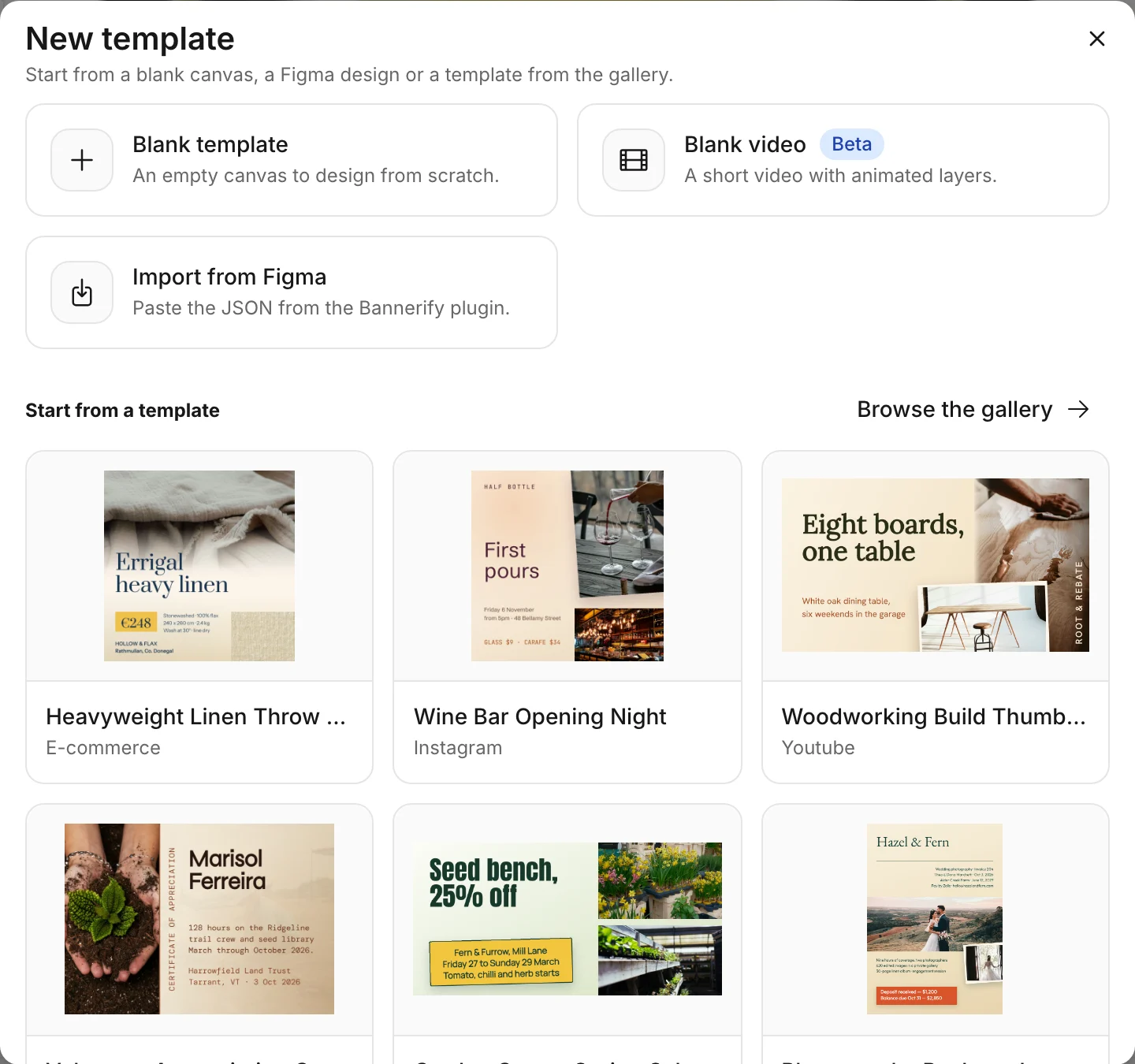
Start from a blank canvas, a Figma export, or a gallery template. -
Click Text in the top bar, then click the canvas to add a text layer.
-
Double-click the layer in the Layers list, type
headline, and press Enter. -
Click Save.
-
Go back to the Templates page, open the menu on your template card, and click Copy Template ID.
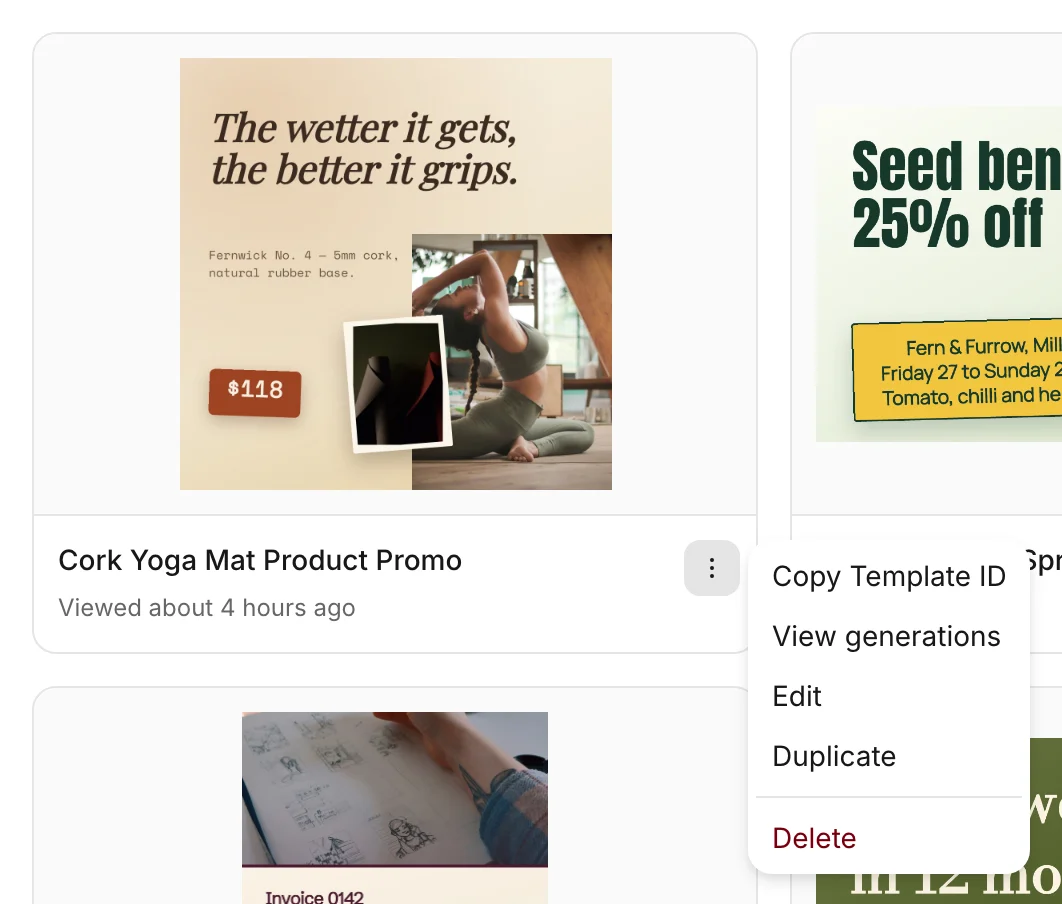
The layer name is how a request finds the layer. To start from a design instead, pick a card under Start from a template in step 1. Design a template shows the rest of the editor.
3. Generate an image
Send the template id and one modification that sets the text of headline.
Examples
Open only what you need
curl
curl --request POST \
  --url https://api.bannerify.co/v1/templates/createImage \
  --header 'Content-Type: application/json' \
  --output banner.png \
  --data '{
    "apiKey": "YOUR_API_KEY",
    "templateId": "tpl_xxx",
    "modifications": [
      { "name": "headline", "text": "Hello from the API" }
    ]
  }'
JavaScript
import { writeFile } from "node:fs/promises"
import { Bannerify } from "bannerify-js"

const bannerify = new Bannerify(process.env.BANNERIFY_API_KEY!)

const { result, error } = await bannerify.createImage("tpl_xxx", {
  modifications: [{ name: "headline", text: "Hello from the API" }],
})

if (error) throw new Error(error.message)

await writeFile("banner.png", Buffer.from(result))
Open banner.png. It is your template with the new headline. If the request fails, the response is JSON with an error object, and Handle errors lists the codes.