Essentials
Generate images from a spreadsheet
Learn how to fill a template from a CSV or XLSX file and get a hosted image for each row.
The Bulk page in the dashboard turns every row of a spreadsheet into an image. You pick a template, upload a file, match columns to layers, and run the rows one by one. Each row gets a hosted image URL, and you can export the results as a new spreadsheet.
This is useful for a product catalog, a list of attendees, or any batch where the data already sits in a sheet. To generate images from your own code, use the API instead.
Prepare the spreadsheet
- Save the file as CSV or XLSX. An XLSX file uses its first sheet only.
- Put the column names in the first row. Every other row makes one image, and blank rows are skipped.
- Give each column a name that looks like a layer name, such as
headlineorphoto. Bannerify matches the names for you, and you can change the match. - For an image layer, put a public URL to a PNG, JPEG, WebP, or SVG file in the cell.
Run a bulk job
- Open Bulk under Generate in the sidebar.
- Choose a Template and an API Key. The page uses the first key until you choose another.
- Click Upload CSV/XLSX and choose your file. A message tells you how many rows loaded.
- Check Field Mapping. Each named layer of the template has a selector for a column. A layer without a match shows Not mapped and keeps its value from the template. Change a match with its selector.
- Edit any cell in the grid if a value is wrong.
- Click Run Sequentially.
The page sends one row at a time and shows the progress. A row ends as done or error.
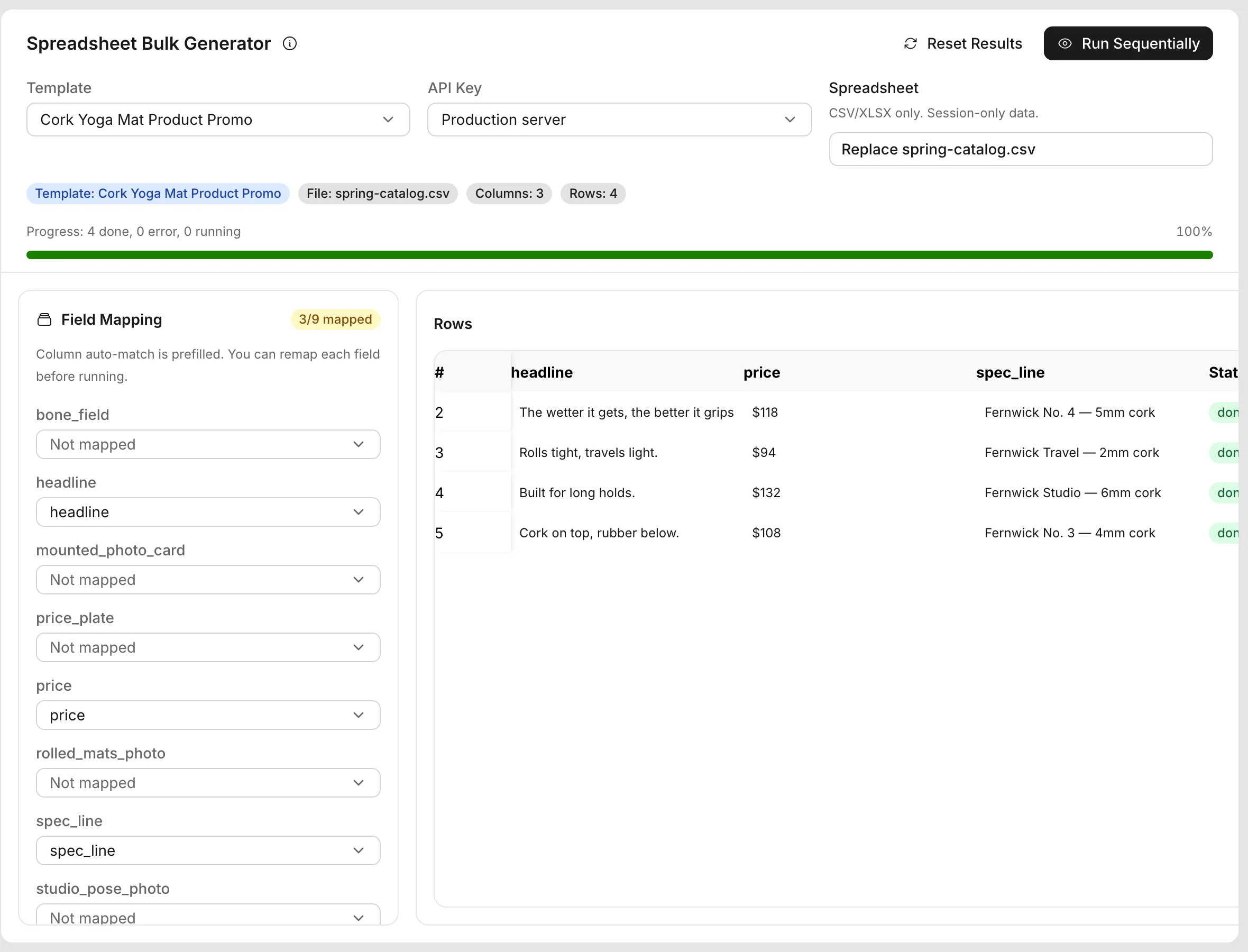
How a column fills a layer
A cell value becomes one modification for the matched layer. Modifications lists every field.
| Layer type | The cell sets |
|---|---|
| Image | src |
| QR code | qrcode |
| Barcode | barcode |
| Star | star, as a number |
| Any other type | text |
An empty cell is skipped, so the layer keeps the value from the template. A row with no value in any mapped column fails with No mapped value found.
The text field only changes text, signature, and alert layers. To fill a table or a chart, call the API.
Read the results
The grid has three result columns.
| Column | Shows |
|---|---|
| Status | idle, queued, running, done, or error |
| Hosted Image URL | A link to the generated PNG on images.bannerify.co |
| Error | The message for a failed row |
A failed row does not stop the run. A network error does, and the rows that were still waiting go back to idle.
Click Reset Results to clear the statuses and URLs and run the rows again. Click Export CSV or Export XLSX to download your data with three extra columns: bannerify_status, bannerify_image_url, and bannerify_error.
The page does not save your rows. If you leave it, the data is gone, so export the results first.
Quota
Each row creates a stored image, and each stored image counts as one generation. A batch of 500 rows uses 500 generations, so check Billing & Usage before you start. Quota and limits explains the limits, and Generate images describes the stored image endpoint that the page calls.