Account
Manage projects and members
Learn how to create a project, invite your team, and set roles in Bannerify.
A project is a workspace in Bannerify. Each project has its own templates, uploaded assets, API keys, plan, and generation count. Every account starts with a Personal project, and you can create team projects for clients, products, or colleagues.
A separate project keeps one client’s keys and quota away from another’s. The people in a team project share all of it.
Switch between projects
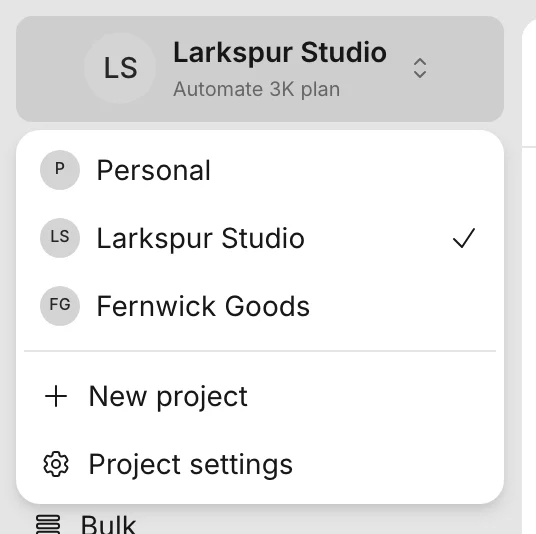
The project switcher sits at the top of the sidebar. It shows the name of the current project and its plan. Click it to see all your projects, with Personal first, and click a name to switch. The dashboard then shows that project’s templates and API keys.
Create a project
- Open the project switcher and click New project.
- Enter a name of up to 50 characters.
- Click Create project.
You become an admin of the new project, and the dashboard switches to it. A new project starts a 14-day Automate 3k trial with 3,000 generations a month. Billing explains what happens when the trial ends.
Rename a project
- Open the project switcher and click Project settings.
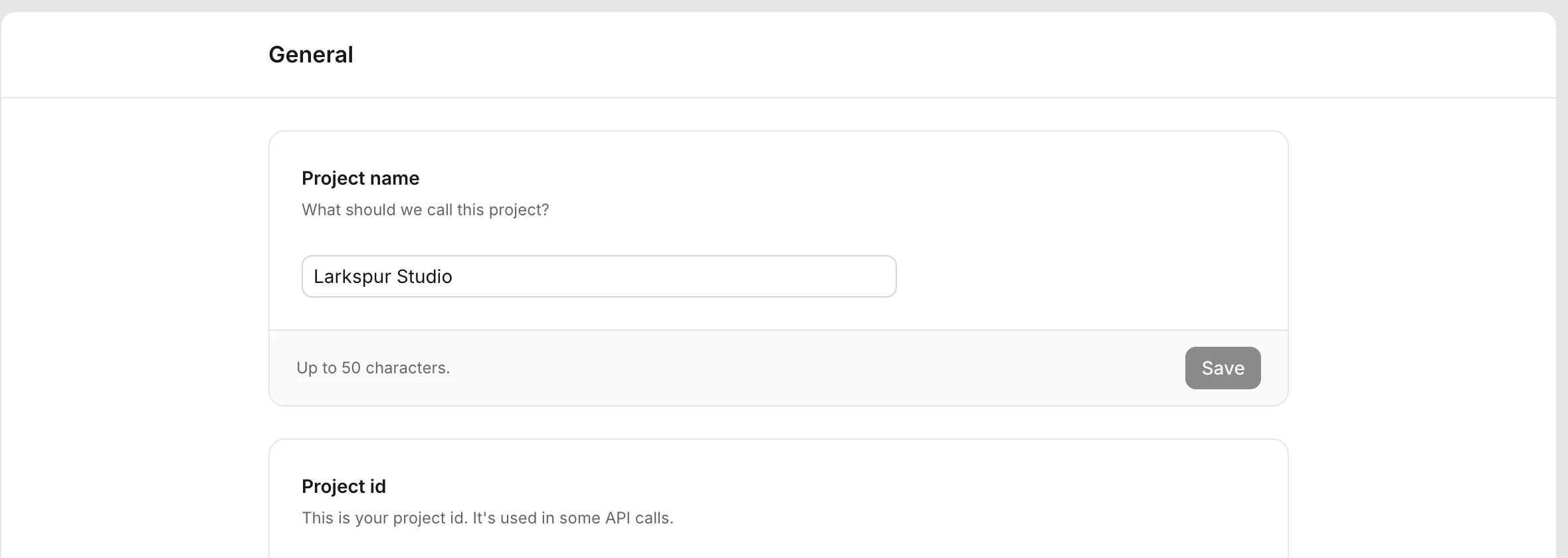
- Edit Project name on the General tab. A name has up to 50 characters.
- Click Save.
The Project id below it is read-only.
Invite people
Team projects have a Members tab in Settings. Your Personal project does not.
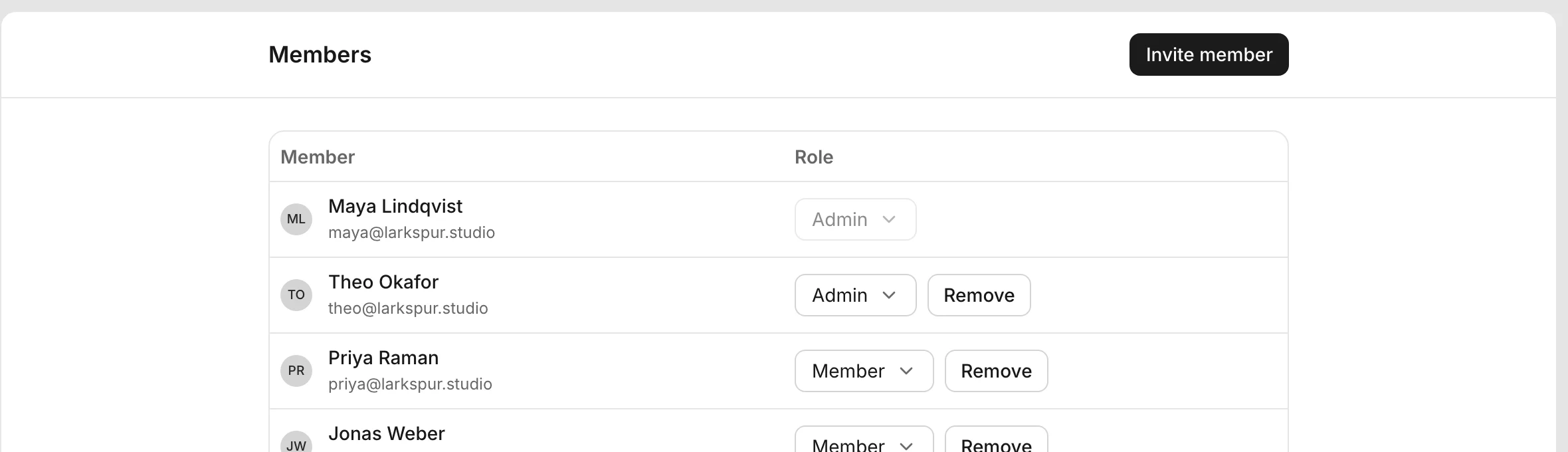
- Open Settings and click Members.
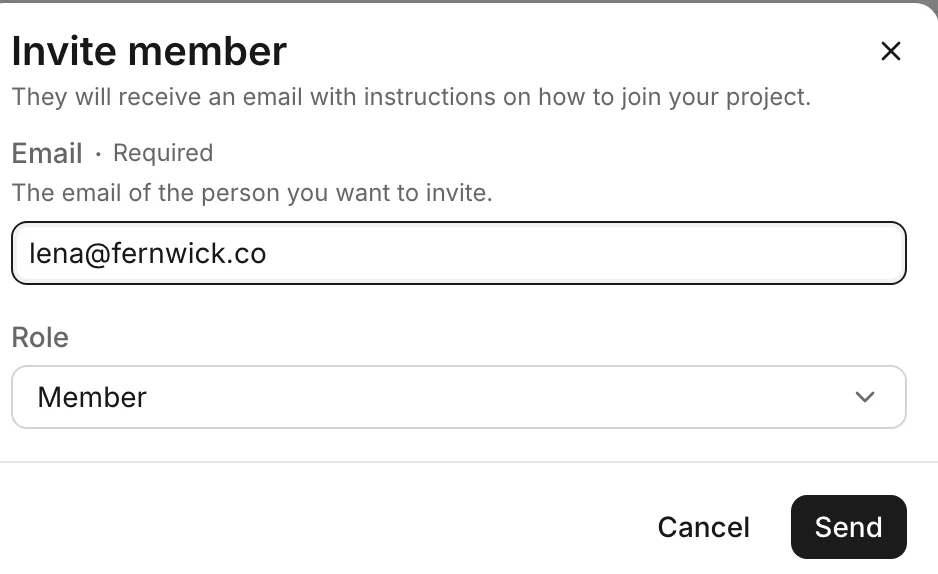
- Click Invite member.
- Enter the person’s email and choose a role. Member is the default.
- Click Send.
The person gets an email with instructions on how to join. They appear in the list after they accept.
Roles
A project has two roles.
| Role | What it can do |
|---|---|
| Admin | Everything a member can do, plus invite people, change the role of other members, and remove members |
| Member | Use the project’s templates and API keys, and see the member list |
Only admins see Invite member, the role selector, and the Remove button. A project can have more than one admin. You cannot change your own role or remove yourself.
To remove someone, click Remove next to their name and click Confirm.
Delete a project
The dashboard has no button to delete a project. Write to an@bannerify.co and name the project.